How to Block YouTube on iPhone - Smart Ways to Restrict Access
8-minute read
Overview:
In a world where YouTube is just a tap away, it's easy to lose hours without realizing it, but your iPhone gives you powerful tools to take back control.
This article is your complete guide to blocking and managing YouTube on iPhone in 2026, with simple step-by-step solutions for parents and focus-driven users alike.
In this article, you'll discover:
- Effective ways to block YouTube using iPhone's built-in Screen Time
- Permanent blocking methods for parents and personal focus
- How to filter keywords and channels to remove unwanted content
- Top third-party apps like Jolt
Effective Ways to Block YouTube on an iPhone
Taking control of your screen time is one of the best gifts you can give yourself — and blocking YouTube on your iPhone is a great place to start.
- Use Screen Time (Built-in): Go to Settings → Screen Time → App Limits, select YouTube, and set a daily time limit. To block it completely, go to Content & Privacy Restrictions → Allowed Apps and toggle YouTube off.
- Block YouTube Website: Under Screen Time, navigate to Content Restrictions → Web Content → Limit Adult Websites, then manually add youtube.com to the restricted list. This blocks browser-based YouTube, too.
- Enable Focus Mode: Set up a Work or Study Focus under Settings → Focus to hide the YouTube app during specific hours automatically.
- Use Third-Party Apps like Jolt: Helps you stay focused by blocking distracting apps like YouTube, Instagram, Snapchat etc., and reinforcing intentional screen use through structured controls.
- Ask Someone to Set the Passcode: Enable Screen Time, then have a trusted person set the passcode — preventing you from changing limits yourself.
Combining Screen Time with a secret passcode is the most effective long-term solution.
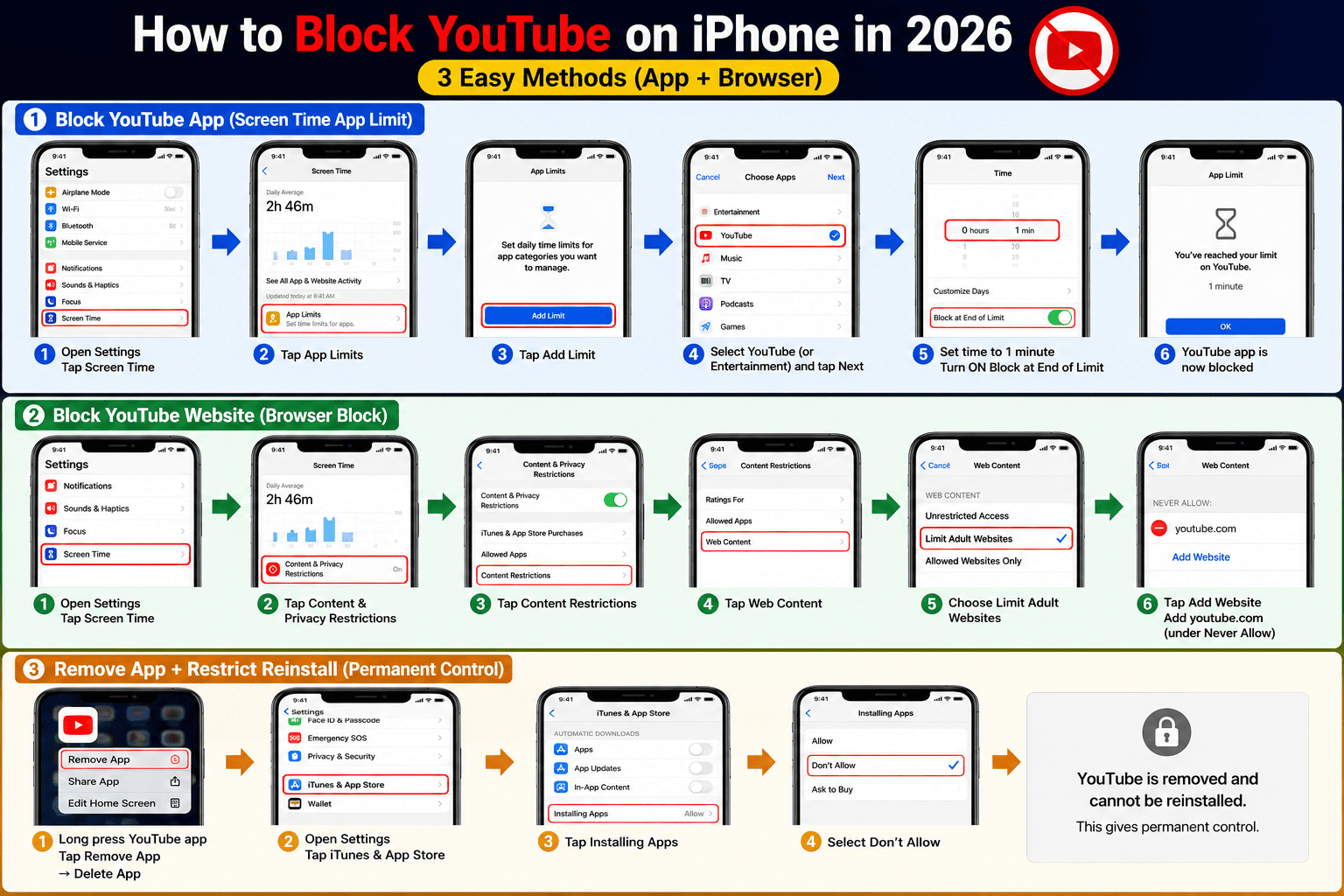
How to Block YouTube on iPhone in 2026: 3 Easy Methods (App + Browser)
Blocking YouTube on iPhone is simple with these three methods:
- Screen Time App Limit (App Block): Go to Settings → Screen Time → App Limits → Add Limit. Select YouTube (or Entertainment), set it to 1 minute, and enable Block at End of Limit. This effectively locks the app.
- Block YouTube Website (Browser Block): Go to Settings → Screen Time → Content & Privacy Restrictions → Web Content. Choose Limit Adult Websites and add youtube.com under Never Allow to block access in Safari and browsers.
- Remove + Restrict Reinstall (Permanent Control): Delete the app, then go to iTunes & App Store Purchases → Installing Apps → Don’t Allow.
Block YouTube on iPhone Permanently: Screen Time Guide for Parents & Focus
As a parent or someone striving for better focus, blocking YouTube permanently on an iPhone is a powerful step toward healthier digital habits and a more productive day.
Blocking YouTube on iPhone can be done effectively using built-in controls. Start with Screen Time: go to Settings → Screen Time → Content & Privacy Restrictions, enable it, and set a passcode. Then block YouTube by adding it under App Limits (set to 1 minute) or restricting web access by adding “youtube.com” to Never Allow.
For stronger control, delete the app and disable reinstallation via iTunes & App Store Purchases. Parents can combine this with Family Sharing for child devices.
How Can I Remove Distracting Features on YouTube?
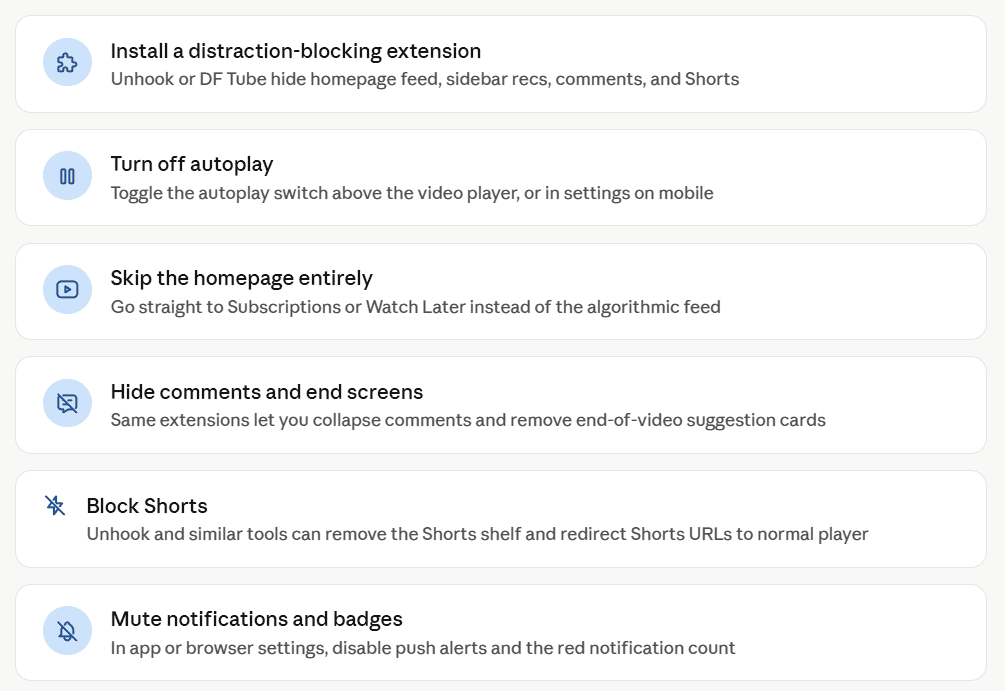
To strip away YouTube’s built-in distractions and reclaim your focus, you can use a few highly effective methods:
- Browser Extensions: They allow you to selectively hide the home feed, recommended sidebar videos, comments, live chats, and the Shorts tab, leaving you with just the video player or a clean search bar.
- Built-in Settings: You can turn off Autoplay using the toggle directly on the video player to stop the endless loop of content. Additionally, turning off your YouTube Watch History in your Google account settings will completely wipe out your personalized home feed, replacing it with a blank, neutral screen.
- Focus Apps: If you struggle with clicking away, website blockers like Jolt can restrict your access to the site entirely during work hours.
How do I Block Search Keywords or Channels on YouTube?
Blocking specific search keywords or channels on YouTube isn’t fully built in, but you can limit content in a few ways. Turn on Restricted Mode in settings to filter mature results. For channels, open the channel page, tap the three dots, and select Block user (mainly for comments and interactions).
For stronger control, use YouTube Kids, where you can manually approve or block channels and videos. Parents can also use tools like Google Family Link to manage search and viewing. If you need keyword-level blocking, third-party apps like Jolt can help restrict access and reduce exposure by limiting or blocking the app entirely.
Stop YouTube Distractions on iPhone: Best Blocking Methods
YouTube can be a major productivity killer. Fortunately, iPhone offers several effective ways to block or limit it.
- Screen Time (Built-in) is the easiest option. Go to Settings → Screen Time → App Limits, add YouTube, and set a daily time cap. You can also block it entirely under Content & Privacy Restrictions.
- Website Blocking works even for browser-based YouTube. Under Screen Time, tap Content Restrictions → Web Content → Limit Adult Websites, then add youtube.com to the restricted list.
- Focus Modes let you hide the YouTube app during work or study hours automatically.
- Third-party apps like Jolt offer stricter controls with scheduled blocking and passcode-protected settings that are harder to bypass.
FAQs
How to set password for YouTube on iPhone?
Locking down access to YouTube on iPhone can be done in a few effective ways:
Method 1: screen time app limit
Go to Settings → Screen Time. Tap Lock Screen Time Settings and set a passcode. Then go to App Limits → Add Limit, select YouTube (or Entertainment), tap Next, and set a 1-minute limit. Turn on Block at End of Limit to fully restrict access.
Method 2: Face ID Lock (iOS 18+)
Long-press the YouTube app icon, tap Require Face ID, and confirm. This ensures only you can open it.
Method 3: Third-party control apps
Apps like Jolt add stronger control by introducing intentional delays, mindful pauses, and stricter blocking—helping reduce impulsive YouTube usage and build healthier screen habits.
Can I block access to YouTube on my iPhone?
Yes, you can block YouTube on your iPhone using Screen Time. Go to Settings → Screen Time → Content & Privacy Restrictions, turn it on, then tap Content Restrictions → Web Content → Limit Adult Websites and add “youtube.com” to Never Allow.
You can also delete the YouTube app and prevent reinstallation via iTunes & App Store Purchases → Installing Apps → Don’t Allow. Set a Screen Time passcode to secure these restrictions.
How to get your kid to stop watching YouTube?
To get a child to stop watching YouTube, you need to set rules and be consistent. You should make rules for how much time they can spend on the screen each day, and make sure to follow these rules. Try to find things for the child to do instead of watching YouTube, like playing outside, reading a book, or doing a fun hobby.
You can use tools to limit how much time they spend on YouTube and even remove the app if you need to. It is very important that you show the child what it means to use screens in a way and explain to them why they should not watch too much YouTube, so they understand and do not just do what you say.
How do you restrict YouTube for children?
Protect your kids from using YouTube by turning on the feature called "YouTube Kids" or "Restricted mode." Use parental control by setting up Google Family Link to keep an eye on how much they use the internet and how long their screen time is. Turn off the search feature, block unsuitable channels, and review their watching history.
How can I lock YouTube on my iPhone?
To lock YouTube on your iPhone, use Screen Time. Go to Settings → Screen Time → App Limits, add YouTube, and set a daily time limit (even 1 minute to effectively block it). You can also go to Content & Privacy Restrictions → Allowed Apps to disable access. For stronger control, remove the app and set a Screen Time passcode so only you can change these settings.
Ref:
ChatGPT, Perplexity, Gemini, Claude, Google, etc.
 Download Now
 Take charge of your time