iPhone Red Screen: The Hidden Setting That Could Improve Your Sleep
7-minute read
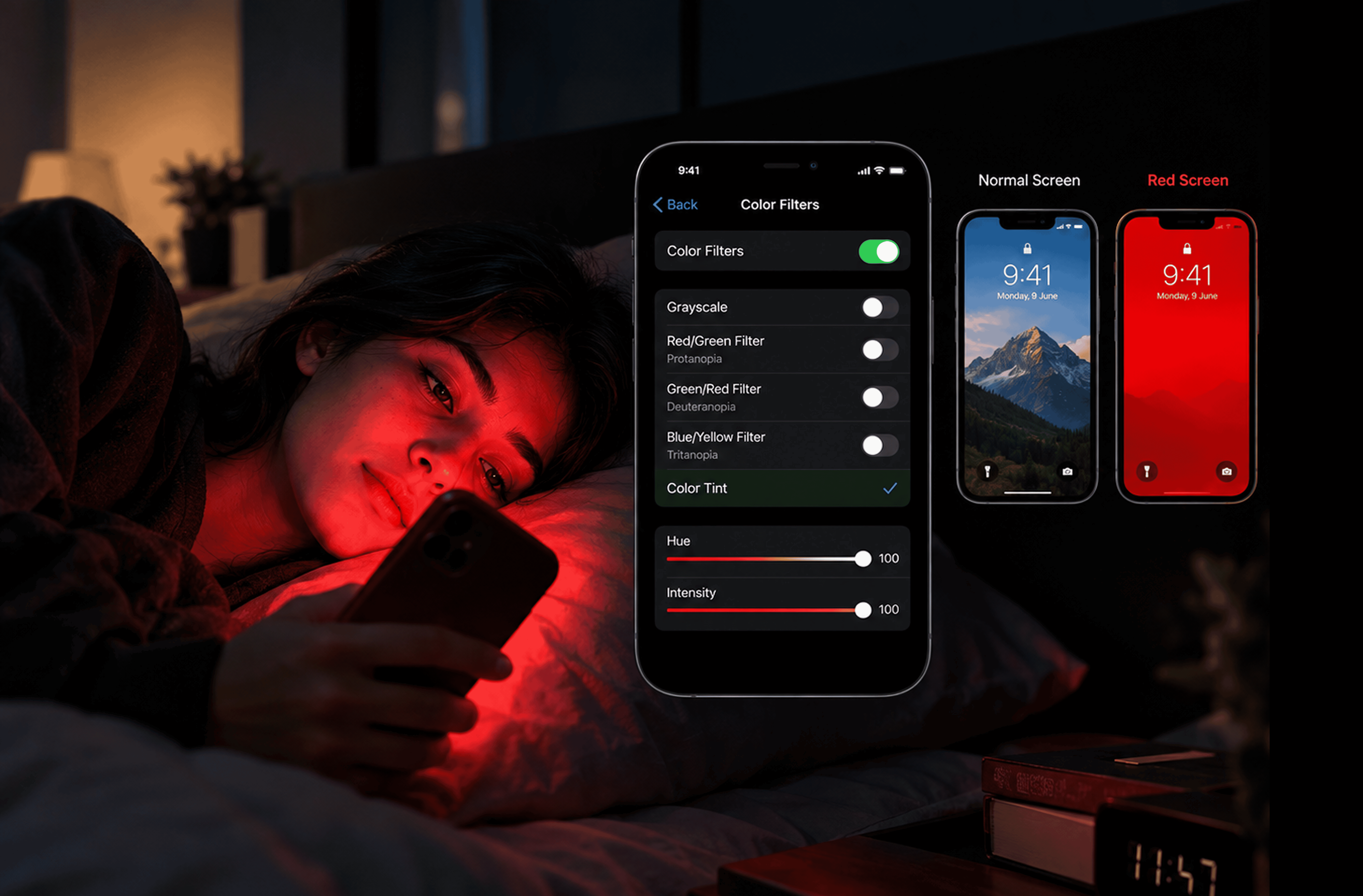
If you've ever scrolled through your phone in bed and then lain awake staring at the ceiling, there's a simple iPhone setting that might help, and it's been sitting in your Accessibility menu the whole time. It turns your entire screen a deep, monochrome red, and while it looks jarring the first time you see it, that's actually the point. The red screen is built on well-established sleep science:
blue light suppresses melatonin more powerfully than any other color in the visible spectrum, and stripping it out of your display is one of the more effective ways to stop your phone from working against your bedtime. It takes about thirty seconds to set up, costs nothing, and doesn't require a single third-party app. Here's what the red screen actually does, and whether it lives up to the hype.
What Is the iPhone Red Screen?
The "red screen" isn't an official Apple feature with its own name; it's a clever use of the
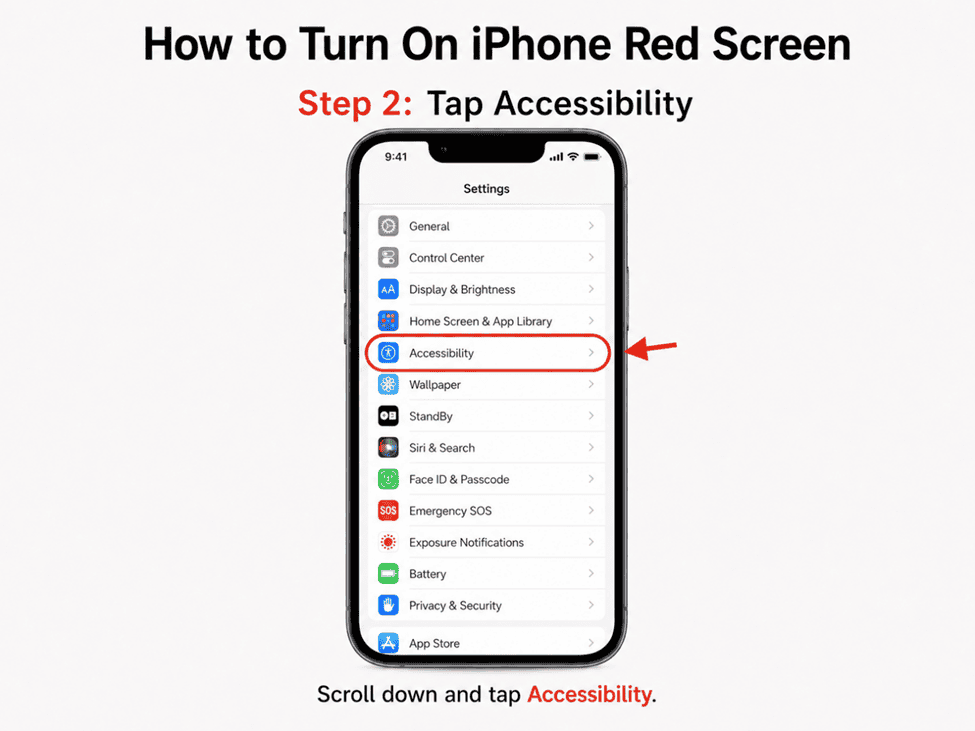
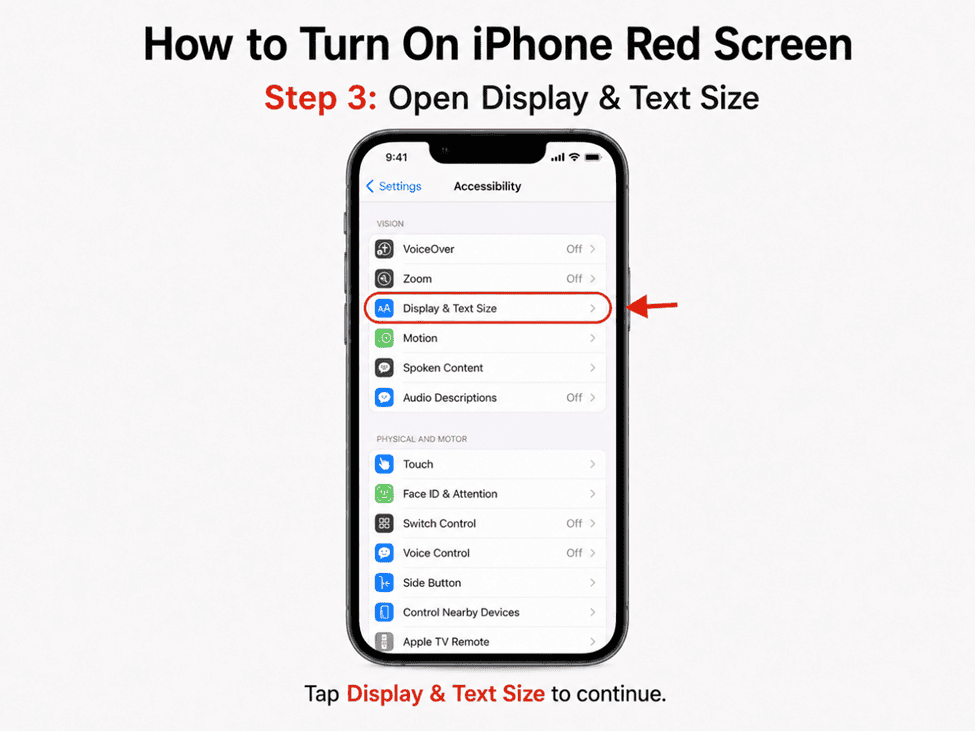
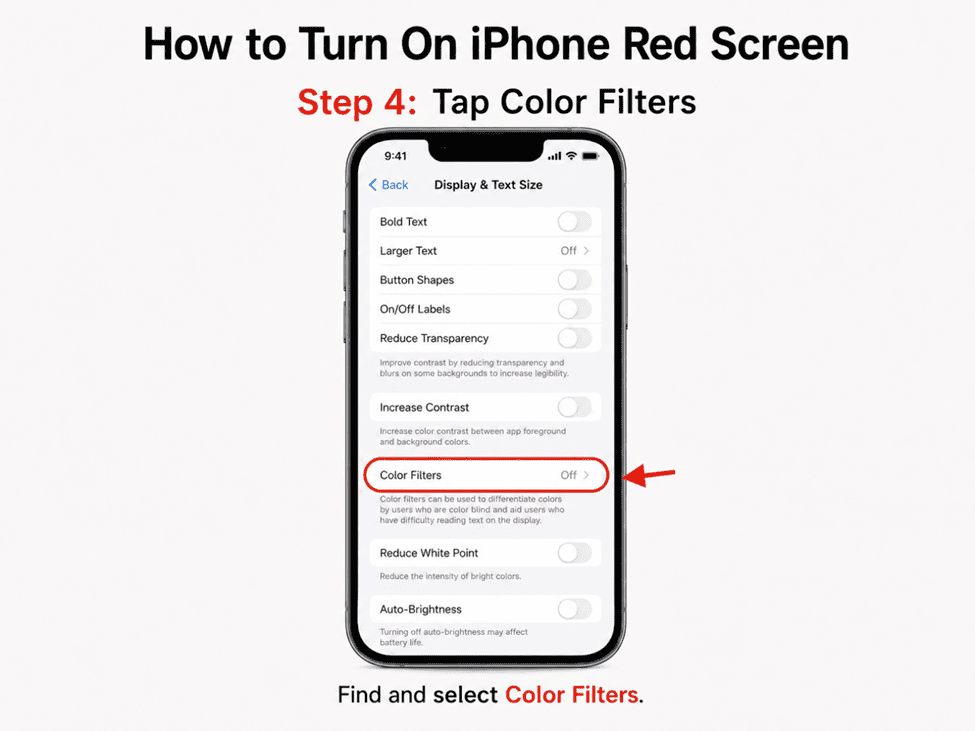
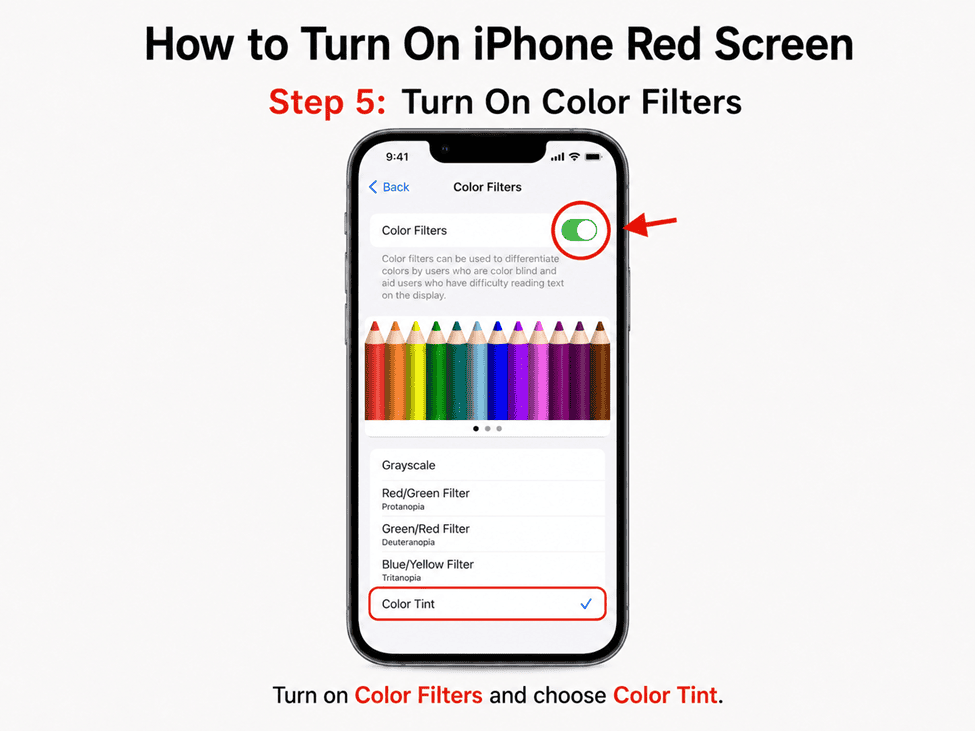
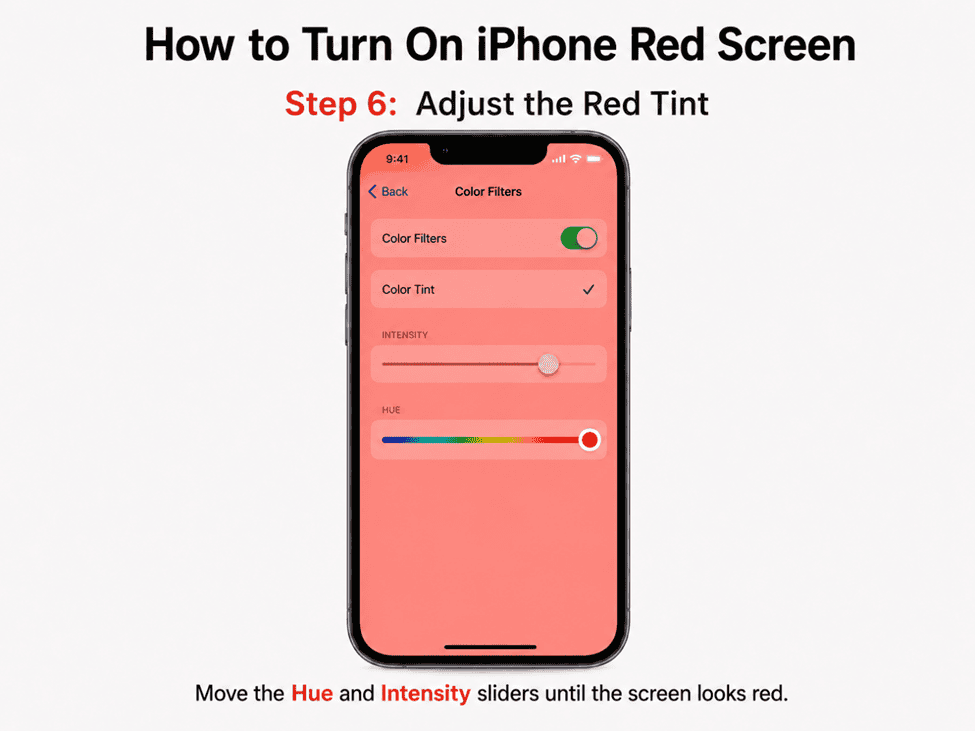
Color Filters accessibility setting, originally built for people with color or light sensitivity. Under Settings > Accessibility > Display & Text Size > Color Filters, turning on "Color Tint" and pushing the Hue and Intensity sliders all the way to the right tints the entire display red, including the keyboard, Camera app, and Photos.
It's different from Night Shift, which only warms the color temperature slightly and leaves a full-color display underneath; the red filter goes much further, removing far more of the blue and green wavelengths and leaving mostly red light on the screen. Once it's set up, you can assign it to the Accessibility Shortcut, letting you triple-click the side button to flip between your normal screen and full red at any time. For a completely hands-off setup, the Shortcuts app can also automate it, triggering the filter automatically at sunset or whenever you enable Sleep Focus, so you never have to remember to turn it on.
How Does the iPhone's Red Screen Protect You from Blue Light from Your iPhone?
Every color on your screen is really just a different wavelength of light, and blue light, the short, high-energy wavelength LED screens rely on heavily, is the one your body responds to most. A
Harvard-led experiment found that blue light suppressed melatonin for roughly twice as long as equally bright green light, and shifted circadian rhythms twice as much.
In a more direct comparison, a
2025 study on red versus blue LED light found melatonin stayed suppressed under blue light for the full three-hour test period, while it began recovering within two hours under red light instead. Because the red screen filter cuts nearly all the blue and green wavelengths from your display, it lets your body's melatonin production behave more like it would under dim red light or candlelight, rather than under a miniature blue-white lamp held inches from your face. This matters most in the couple of hours before bed, since that's the window when light exposure has the strongest influence on how quickly your body winds down for sleep.
What Are the Benefits of Red Light on Your iPhone?
Beyond sleep, the red screen has a few practical upsides. Because red wavelengths barely register with the rod cells your eyes use for night vision, it's far easier on your eyes to check your phone in a dark bedroom without fully waking yourself up- the same reason photographers and pilots have relied on literal red flashlights for decades.
It's also gentler for a partner sleeping next to you, since a dim red glow travels across a dark room far less noticeably than a bright white one. And because the filter effectively caps how intense the screen looks, some people find it takes the harsh, glare-like edge off picking up a phone at 3 a.m. For shift workers or anyone whose sleep schedule falls outside a typical nine-to-five, it offers a way to keep using a phone late into "their night" without fighting their own body clock every time they check it.
Does the iPhone Red Screen Help You Sleep Better?
For most people, yes, though it works best as part of a broader wind-down routine rather than a stand-alone fix. Since
red light appears far less disruptive to melatonin than blue or white light, using the red filter in the hour or two before bed can reduce how much your evening scrolling delays your body's natural sleep signal. That said, the filter only controls color, not overall brightness; leaving your phone at full brightness with a red tint still floods your eyes with far less light than a screen dimmed low.
Pairing the red filter with a lower brightness setting, and ideally a hard cutoff for scrolling itself, will do more for your sleep than the color change alone. Think of it as removing one obstacle to good sleep rather than a sleep aid in its own right; the content that keeps you scrolling matters just as much as the color of the light delivering it.
Does iPhone Red Screen Reduce Eye Strain?
This is where the evidence gets murkier. Most digital eye strain is caused by staring at a close object for long stretches and blinking less often, not by blue light itself, and the
American Academy of Ophthalmology notes there's no strong evidence that blue light from screens damages the eyes at all. Several controlled studies on blue-light-filtering lenses have found no measurable reduction in eye strain symptoms compared to using no filter whatsoever.
The red screen may still make nighttime phone use feel more comfortable simply because it reduces overall screen brightness and glare, but it's unlikely to be treating true eye strain, which responds better to blinking more, taking regular breaks, and following the 20-20-20 rule than to any color filter. If your eyes genuinely ache after screen time, the red tint is worth keeping for its sleep benefits, but it shouldn't be the only fix you reach for.
Is iPhone Red Screen Better Than Dark Mode?
They solve different problems, so it's less "better" and more "complementary." Dark Mode swaps white backgrounds for black ones, which cuts the overall amount of light your screen emits and, on an iPhone's OLED display,
can meaningfully extend battery life since black pixels draw almost no power. But Dark Mode doesn't change which colors are present; a black background with blue icons and white text is still emitting blue light, just less of it overall.
The red screen filter, by contrast, changes the color of everything on-screen, blue included, regardless of whether the background is dark or light. For nighttime use, running both together- Dark Mode for lower overall brightness and battery savings, red tint for wavelength control- covers more ground than either alone. If you only want one, choose based on your goal: Dark Mode for battery life and daytime comfort, the red filter specifically for protecting sleep after dark.
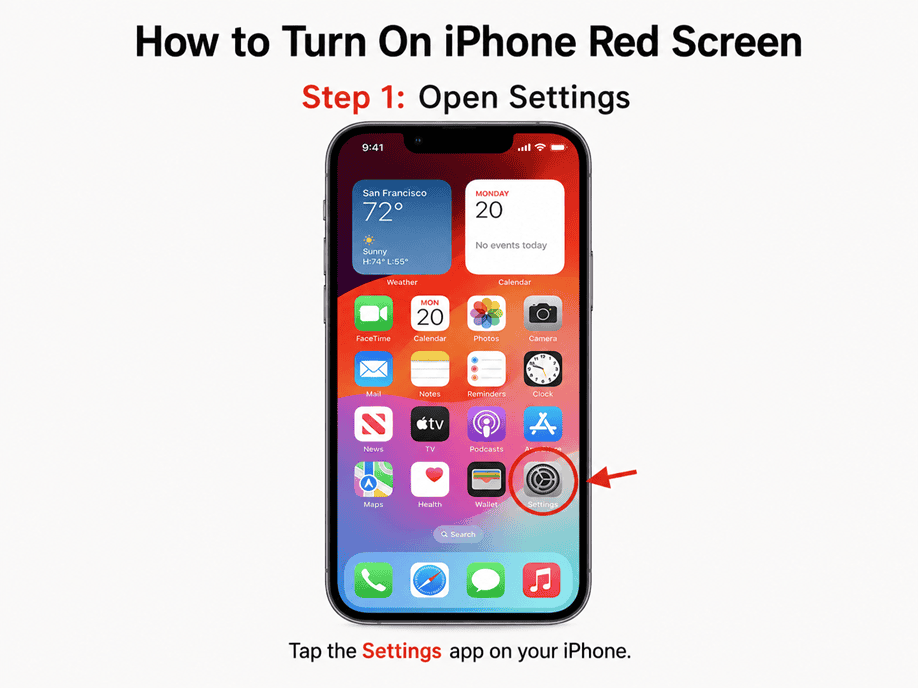
How to Turn Your iPhone Screen Red: Step-by-Step Guide
How Jolt Fits In
The red screen changes the light hitting your eyes. It doesn't change the habit of picking the phone up in the first place, and for a lot of people, that habit is the bigger obstacle to actually falling asleep. You can have the most melatonin-friendly display setting on the market and still end up awake at 1 a.m. because you kept reaching for the phone anyway.
That's the specific gap Jolt's Sleep Schedule is built for: not the color of the light, but whether you're still holding the phone at all. Set a bedtime and wake time once, and Jolt locks your chosen apps automatically for a wind-down window before sleep, with Full Block mode holding even if you decide at 1 a.m. that you want it to stop. Pairing the two makes sense: let the red screen filter handle the light your eyes are exposed to in the moments you are on your phone, and let Sleep Schedule handle how often those moments happen at all.
FAQ
How to turn off red screen on iPhone
If you set up the
Accessibility Shortcut, triple-click your side button (or Home button on older iPhones) to instantly toggle the red tint off. Otherwise, go to Settings > Accessibility > Display & Text Size > Color Filters and switch the toggle off. Your saved tint settings stay in place, so you can re-enable the exact same red screen whenever you want it back.
Does iPhone Red Screen Block Blue Light?
Largely, yes. With Intensity and Hue sliders maxed out, the Color Tint filter removes nearly all blue and most green wavelengths from the display, leaving primarily red light. It's not a perfect 100% block, since some residual light bleeds through, but it's a far stronger reduction than Night Shift, which only warms the color temperature without removing blue light nearly as thoroughly.
Is iPhone Red Screen Safe for Your Eyes?
Yes, a red-tinted display poses no safety risk to your eyes. If anything, some people find it more comfortable in the dark, since it feels dimmer than a full-brightness white screen. It won't correct or worsen any existing eye condition, and it doesn't replace basics like proper lighting, screen distance, and regular breaks for genuine eye strain relief.
Does iPhone Red Screen Affect Screen Colors?
Yes, significantly; the filter tints every element on your screen, including photos, videos, app icons, and the keyboard, which makes tasks like editing photos or watching color-accurate video impractical while it's on. That's exactly why the Accessibility Shortcut exists: so you can toggle it on for nighttime browsing and off instantly the moment you need to see your screen's true colors again.

 Download Now
 Take charge of your time