How to Block Porn on iPhone: A Complete, Science-Backed Guide
7-minute read
Explicit content is one tap away on any iPhone, and the phone's default settings do almost nothing to stop it. Whether you're locking down a child's device, supporting a partner's recovery, or building guardrails for yourself, Apple's Screen Time tools combined with a few extra layers can close most of the gaps that a single setting leaves open.
A
national survey by Common Sense Media of 1,358 teens found that 73% of respondents aged 13 to 17 had watched online pornography, with 54% reporting they first saw it by age 13, often by accident rather than by choice, which is exactly why the settings below are worth setting up properly rather than leaving to chance. This guide walks through every layer, from Apple's native controls to network-wide filtering, in the order that gives you the strongest protection first.
Why Blocking Porn on Your iPhone Actually Matters
This isn't just a parenting preference; there's a physiological reason to take it seriously. A
brain-imaging study using functional near-infrared spectroscopy found that watching pornographic content produced hyperactive and inhibited patterns in brain regions tied to reward processing and impulse control, changes that echo what's seen in other compulsive behaviors. It's worth noting this was a small study, 16 typical participants compared with 5 who reported severe compulsive use, so treat it as an early, suggestive finding rather than a settled conclusion. It's also worth knowing that “pornography addiction” isn't a recognized diagnosis in the DSM-5; the closest clinical category, Compulsive Sexual Behaviour Disorder in the ICD-11, specifically cautions against equating frequent use alone with a disorder.
The effect appears stronger in younger users: a review of adolescent brain development and sexually explicit material concluded that teenage brains may be uniquely sensitive to this kind of content because the regulatory regions that govern impulse control are still maturing well into a person's twenties.
High sensitivity paired with low regulation is a strong argument for a technical block, not just a conversation. None of this means occasional exposure causes lasting harm, but it does mean the setup you choose is worth getting right rather than treating as an afterthought.
Turn on Screen Time and Set a Restrictions Passcode
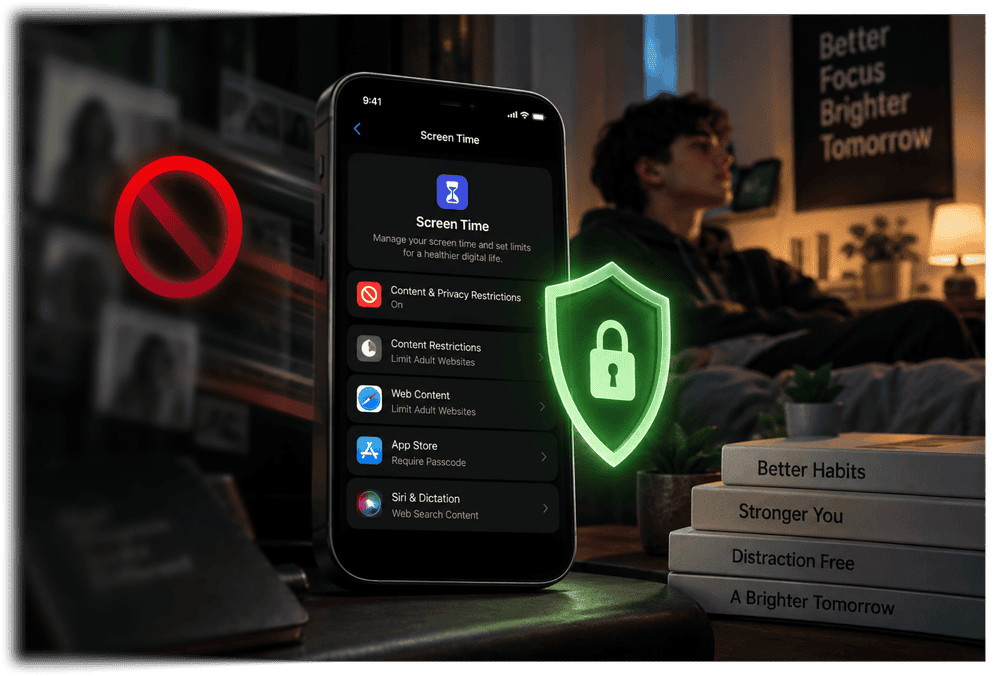
Everything else in this guide sits on top of Screen Time, so start there. Open Settings, tap Screen Time, and turn it on if it isn't already. Tap Content & Privacy Restrictions and enable it, then set a Screen Time passcode that's different from the phone's unlock code; reusing the same one defeats the purpose, since anyone who knows the unlock code can simply switch restrictions off. If this is for a child, set it up through Family Sharing instead, so the restrictions sync to their device and only you can change them, remotely, from your own iPhone.
Automatically Limit Adult Content in Safari
Inside Content & Privacy Restrictions, tap Content Restrictions, then Web Content, and choose “Limit Adult Websites.” Apple's on-device filter scans URLs and page content and blocks known pornographic sites automatically, with no manual list required. It's a genuinely useful first layer, but it isn't airtight.
Research from the Oxford Internet Institute on adolescent exposure to online sexual material found that filtering tools were an inconsistent predictor of whether teens actually encountered explicit content, largely because filters struggle to keep pace with new sites and don't extend to apps outside the browser. Treat this setting as a solid baseline, not a complete solution on its own.
Build a Custom Allowed and Blocked Website List
For tighter control, switch Web Content to “Allowed Websites Only” and manually add every site a child or family member is permitted to visit. It's the most restrictive option and works well for younger kids who don't need open browsing yet. If that's too limiting for your situation, stay on the automatic filter and use the “Never Allow” list underneath it to permanently block specific sites the built-in filter misses, along with “Always Allow” for anything wrongly flagged. Revisit this list occasionally; new sites appear constantly, and an unmaintained filter loses effectiveness fast.
Restrict the App Store, Siri, and Explicit Media
Pornography doesn't only live in Safari. Under Content Restrictions, set Apps to an appropriate age rating so 17+ apps that host user-generated or adult content can't be downloaded, and turn off explicit content permissions in Music, Podcasts, and News. Also disable “Web Search Content” under Siri & Dictation, since Siri can otherwise surface search results that bypass Safari's filter entirely. Finally, require your passcode for App Store installs and account changes; this closes the common loophole of downloading an unrestricted third-party browser to get around everything else you've just set up.
Reinforce Protection with a Third-Party Blocking App
If Apple's native tools still feel porous, a dedicated blocking or accountability app can add real-time image scanning, cross-app coverage, and tamper alerts that Screen Time doesn't offer. These aren't a replacement for the settings above; think of them as a second lock on the same door. The evidence on how much they help alone is mixed: a
rapid evidence assessment on pornography's effects on children and young people concluded that, used in isolation, these tools rarely deliver the protection families expect, but that outcomes improve substantially when they're paired with open conversation and shared household rules. The technology works best as support for a conversation, not a substitute for one.
This is where a tool like Jolt fits, as one additional layer rather than a fix on its own. Jolt's 18+ Content Blocking toggle blocks adult websites across Safari and every other browser on the phone, and Jolt maintains that block list automatically rather than relying on a manually updated list going stale. It also adds a deliberate friction step before the block can be turned off: attempting to disable it triggers a pause first, rather than a single tap, which directly addresses the specific gap the research above keeps identifying- restrictions that fail not because they don't exist, but because they're too easy to switch off in the moment. Consistent with everything above, this is a second lock on the same door, not a replacement for Screen Time, DNS-level filtering, or the conversation that has to happen alongside all of it.
Common Mistakes That Quietly Undo Your Setup
Even a well-configured phone can leak. The most common failure is reusing the device passcode as the Screen Time passcode, which hands anyone the master key. A close second is forgetting to restrict account and password changes, which lets a determined teen simply sign into a fresh, unrestricted Apple ID. Skipping DNS-level filtering leaves every non-Safari app wide open, and never revisiting the allow/block lists means the setup that worked last year quietly stops working this year as new sites and apps appear.
None of these gaps show up until someone finds them, so it's worth testing your own setup periodically rather than assuming it still holds. A quick way to do this is to try each workaround yourself on the restricted device every few months, since new iOS updates occasionally reset or loosen individual settings without any notification.
Frequently Asked Questions
Can a teenager bypass Screen Time restrictions?
Yes, if the setup is incomplete. Common workarounds include factory-resetting the device, switching Apple IDs, joining an open Wi-Fi network, or installing an unfiltered browser before restrictions are fully locked down. Closing these gaps means setting a Screen Time passcode different from the unlock code, restricting App Store installs and account changes, and adding network-level DNS filtering so browsing stays blocked outside Safari too.
Does "Limit Adult Websites" catch everything?
No filter does. Apple's built-in tool blocks known pornographic domains automatically, but brand-new or obscure sites can slip through before they're categorized, and it only covers Safari, not other apps. Research on internet filtering suggests these tools reduce accidental exposure more reliably than determined, intentional searching. Pairing it with a manual blocklist, App Store restrictions, and DNS-level filtering closes most remaining gaps.
What's the best age to set up content restrictions?
Ideally before a child's first personal device, since adding restrictions to established habits is harder than starting with them already in place. Family Sharing lets you configure Screen Time remotely from the moment the account is created. Restrictions still help at any age, though; for older teens, technical limits work best when paired with open conversation rather than used as the only safeguard.
Can I manage a family member's iPhone remotely?
Yes. Apple's Family Sharing links a child's Apple ID to a parent's account, letting you set and change Screen Time limits, content restrictions, and app permissions from your own iPhone without needing physical access to theirs. Changes sync automatically once both devices are online, making this far more reliable than configuring restrictions once and hoping they stick.
Are third-party blocking apps worth it over Apple's built-in tools?
They're worth adding as a second layer, not a replacement. Third-party apps often offer real-time image scanning and cross-device dashboards that Screen Time lacks, but research shows standalone tools rarely work as well as expected. They perform best combined with Apple's native restrictions, DNS-level filtering, and ongoing conversation, rather than relying on them as a single fix.

 Download Now
 Take charge of your time


 Twinkle