7 Best Screen Time Apps for Professionals & Entrepreneurs in 2026
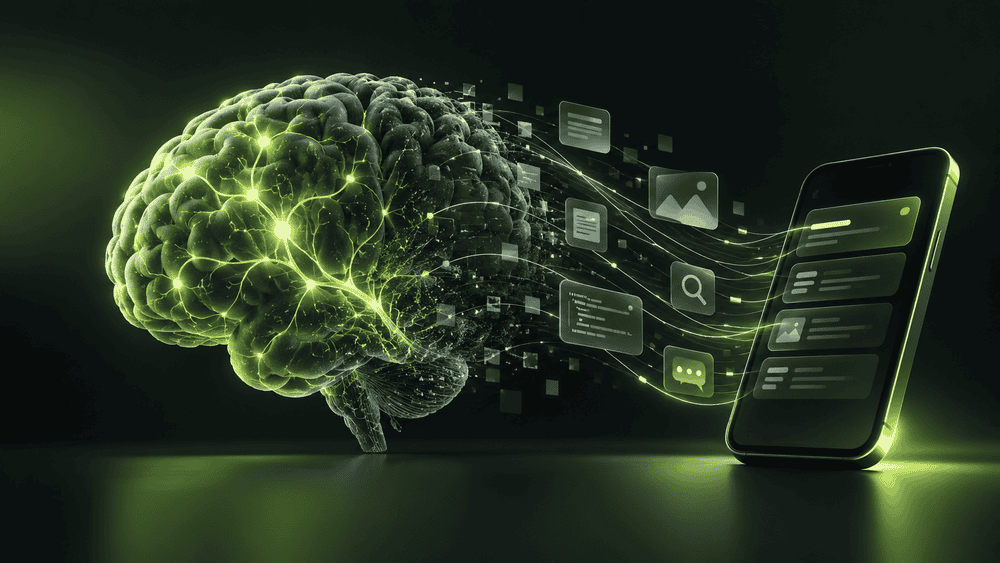
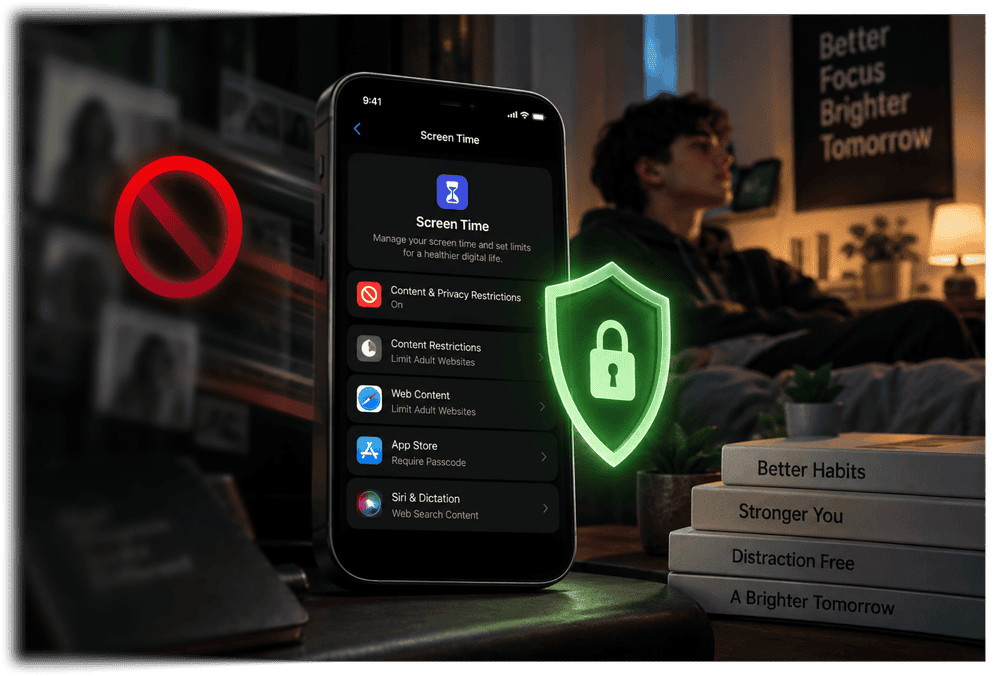
Your phone is useful for work. It is also one of the easiest ways to lose focus.
You open your phone to reply to a client. A notification appears. You check Instagram. Then LinkedIn. Then WhatsApp. Ten minutes disappear before you even notice.
For professionals, founders, freelancers, and business owners, this can happen many times a day.
Microsoft's research on modern work found that employees using Microsoft 365 were interrupted by a meeting, email, or notification about every two minutes during core work hours. The same research found that 48% of employees said their work felt chaotic and fragmented.
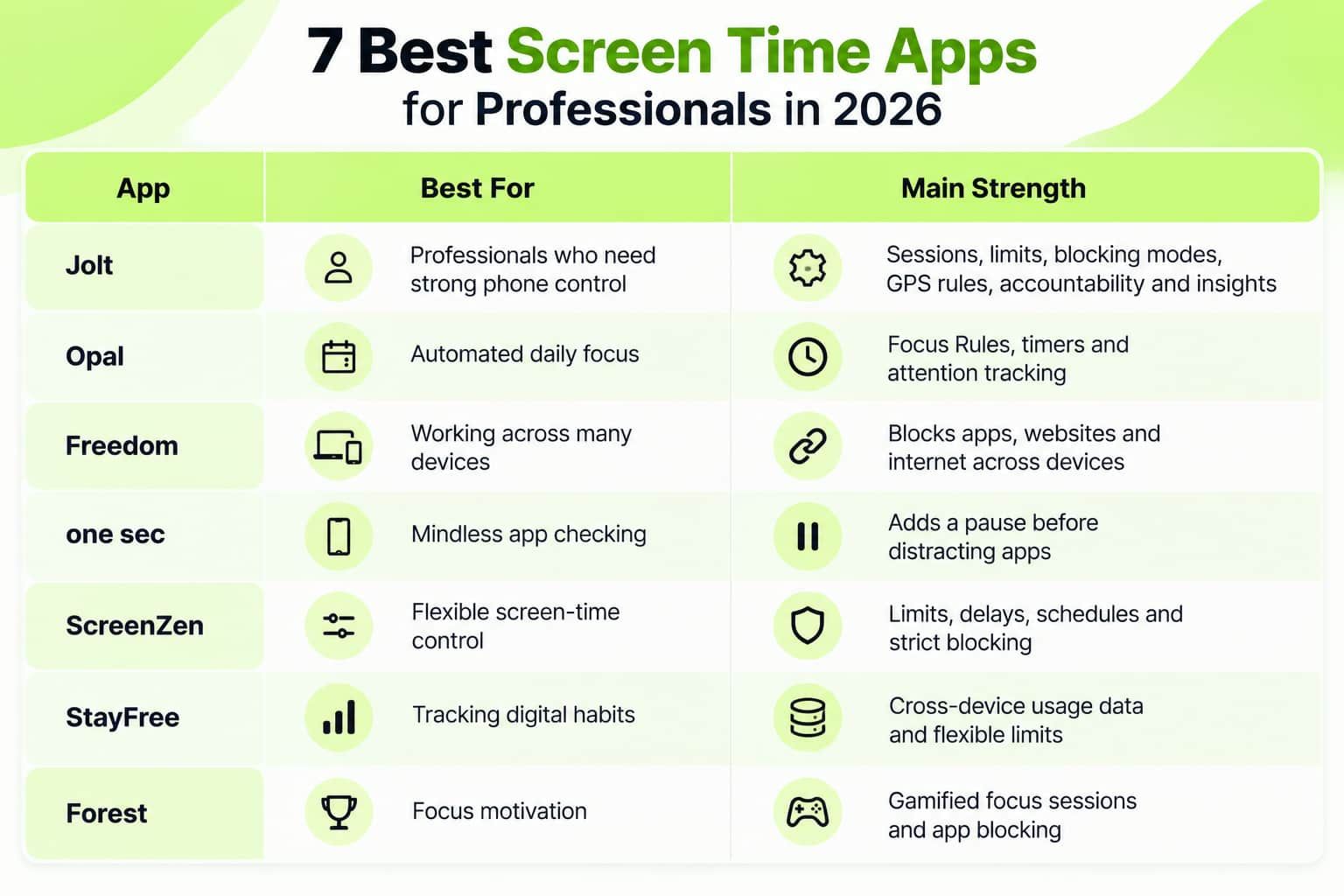
Here are seven of the best screen time apps to consider in 2026.
1. Jolt
Professionals do not always need another productivity planner.
Most already know what they need to do.
The bigger problem is staying focused long enough to do it.
You may sit down to write a proposal, prepare a presentation, finish client work, or plan your business. Then your phone pulls you somewhere else.
What Jolt Helps Professionals Do
You can use it to:
- Protect deep work hours.
- Limit distracting apps during the whole day.
- Control how often you open an app.
- Make certain restrictions harder to bypass.
- Automatically block apps when you reach your office.
- Ask an accountability partner to approve an override.
- Reduce late-night phone use.
- See when and where distraction normally happens.
| Jolt Feature | How It Helps at Work |
|---|
| Sessions | Blocks distracting apps during planned work |
| Quick Focus | Starts an instant focus block |
| Duration Limit | Limits total daily app use |
| Open Limit | Controls how many times an app can be opened |
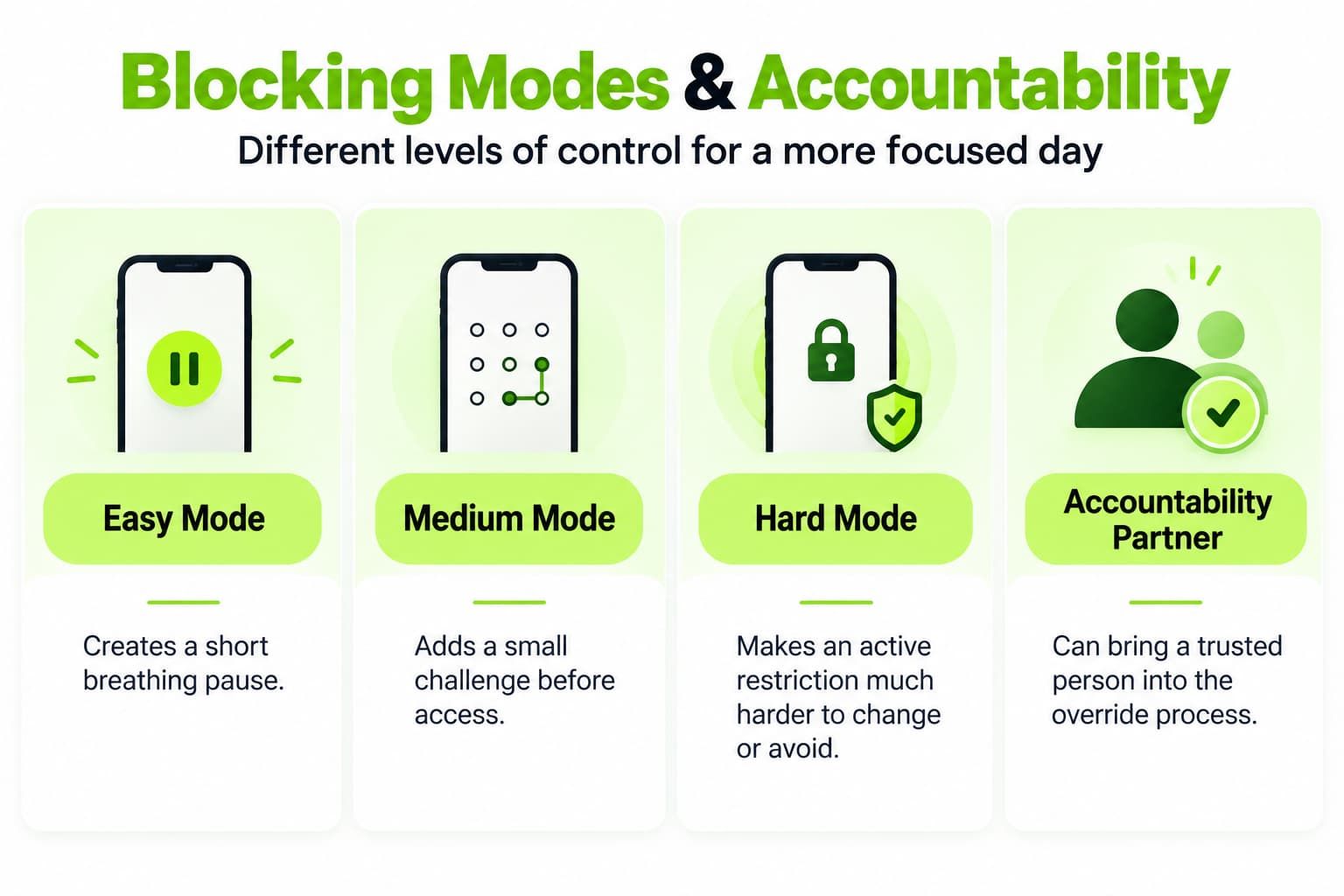
| Easy, Medium and Hard Modes | Changes how difficult it is to bypass a block |
| Accountability Partner | Requires another person for certain overrides |
| GPS Blocking | Starts blocks automatically at a location |
| Good Apps First | Makes useful apps come before distracting ones |
| Sleep Mode | Reduces late-night scrolling |
Use Sessions for Deep Work
Suppose you are writing a business proposal from 10 AM to 12 PM.
You need email, documents, your browser, and perhaps Slack.
You do not need:
- Instagram
- TikTok
- Reddit
- Games
- Entertainment apps
A Session lets you choose a time period and select which apps should be blocked during it.
You can also create recurring Sessions. If your best work happens every weekday between 9 AM and 11 AM, the same block can repeat automatically.
If an unexpected hour suddenly opens in your calendar, Quick Focus lets you start blocking immediately instead of creating a full schedule first.
Use App Limits Outside Your Focus Sessions
Work distraction does not only happen during deep work.
You may check LinkedIn, Instagram, YouTube, or news apps throughout the entire day.
Jolt provides two kinds of limits.
Duration Limit controls total daily time.
For example:
- Instagram: 20 minutes
- YouTube: 30 minutes
- Reddit: 15 minutes
Open Limit controls how many times you can open an app.
For example:
- LinkedIn: 5 opens
- Instagram: 4 opens
- X: 3 opens
This can be useful for professionals who constantly check an app without realizing how often they are doing it.
Choose How Strong You Want the Block to Be
Sometimes a normal reminder is enough.
Sometimes it is not.
Jolt offers different Blocking Modes.
For example, a freelancer may use Easy Mode during a normal afternoon but switch to Hard Mode when finishing an urgent client project.
That makes the system flexible instead of treating every distraction the same way.
Let Your Office Automatically Trigger Focus
GPS Blocking is useful for professionals with a fixed workspace.
You can create rules such as:
Arrive at office → Social media blocked
or:
Enter coworking space → Entertainment apps restricted
The block starts because of where you are, so you do not have to remember to turn it on every morning.
Build Better Phone Habits With Good Apps First
Not every phone habit needs to be removed.
Sometimes it needs to be replaced.
Good Apps First lets you place a useful activity before a distracting one.
For example:
Read industry news first → Social media later
or:
Use your learning app → Entertainment becomes available
This is useful for entrepreneurs who want to make better digital habits part of their normal routine.
Protect Your Evening With Sleep Mode
Many entrepreneurs finish work but never really leave their phones.
One email becomes LinkedIn. LinkedIn becomes YouTube. Suddenly it is midnight.
Sleep Mode lets you:
- Set a bedtime and wake-up schedule.
- Choose apps to restrict.
- Receive a wind-down reminder.
- See your last phone pickup before bed.
- See your first pickup after waking.
- Track overnight phone disturbances.
For professionals, this matters because screen-time management should not end when the workday ends.
Understand Your Distraction Patterns
Jolt's Insights include several ways to review phone behavior.
These include:
- Focus Score
- Discipline Score
- Sleep Score
- Attention Score
- Streaks
- Usage Insights
- Behavior Patterns
- Daily and weekly reporting
Usage Insights can show total screen time, app opens, and changes compared with earlier weeks. Behavior Patterns can help identify the hours when your phone use normally rises.
For example, you may discover that your distraction always gets worse at 3 PM.
You can then create a stronger focus rule around that exact time.
Why Choose Jolt
Many screen time management apps solve one problem.
They may block apps, run a timer, or show usage numbers.
Jolt brings several parts together:
Plan focus → Block distraction → Add limits → Add friction → Track behavior → Improve the routine
It is especially useful for:
- Entrepreneurs
- Business owners
- Freelancers
- Remote workers
- Consultants
- Content creators
- Managers
- Professionals preparing important work
Best for: People who know their phone is hurting their focus and want more than a basic screen-time reminder.
2. Opal
Opal is another strong option among screen time apps for adults, especially for people who want focus rules to become part of their normal day.
Its current product includes Focus Rules, a Focus Timer, Opal Score, and other attention-management tools. It is available on iPhone, Mac, and Android.
Main Opal Features
- Focus Rules can block chosen apps.
- Focus Timer creates dedicated work sessions.
- Opal Score gives you a simple view of your digital habits.
- Assist can remind you when selected distracting apps pass your preferred usage levels.
- Harder blocking options can make restrictions more difficult to ignore.
| Feature | Good For |
|---|
| Focus Rules | Regular work schedules |
| Focus Timer | Deep work |
| Opal Score | Tracking digital balance |
| Assist | Gentle screen-time reminders |
| Harder Blocking | Stronger focus protection |
Best Professional Use
Imagine you want social media unavailable every weekday between:
9 AM and 12 PM
You can create a rule around those hours instead of turning your blocker on manually each morning.
This makes Opal useful for people who want their focus system to run with less daily effort.
Best for: Professionals who prefer scheduled and automated focus rules.
3. Freedom
A phone is not always the only problem.
You may block Instagram on your phone and then open it on your laptop.
That is why Freedom stands out.
Freedom can block apps, websites, and even the internet, and it supports Mac, Windows, iOS, Android, and ChromeOS. Its sessions can work across multiple devices.
Useful Freedom Features
- App blocking
- Website blocking
- Full internet blocking
- Custom blocklists
- Website exceptions
- Scheduled sessions
- Recurring sessions
- Locked Mode
- Cross-device use
- Focus sounds
- Session history
| Work Situation | Freedom Feature |
|---|
| Social media on laptop | Website blocking |
| Distracting phone apps | App blocking |
| Need completely offline work | Block Internet |
| Need the same rules every morning | Recurring sessions |
| Keep ending sessions early | Locked Mode |
| Work across laptop and phone | Multi-device sessions |
Why Entrepreneurs May Like It
An entrepreneur may work across:
- Phone
- Laptop
- Desktop
- Tablet
Freedom makes it easier to create one distraction-control system across those devices rather than solving each one separately.
Best for: Professionals who move between several devices during the workday.
4. one sec
Some people do not spend hours on social media in one sitting.
Their problem is different.
They open apps automatically.
You unlock your phone. Your thumb moves. Instagram is open before you even decide to use it.
one sec is designed to interrupt this habit.
Instead of immediately opening a selected app, it can place a short intervention between you and the app.
What one sec Can Do
It offers features such as:
- Breathing interventions
- Intention tracking
- Emotion tracking
- Healthy alternatives
- App and website blocking
- Scheduled blocks
- Time limits
- Journaling
- Browser interventions
| Habit | Helpful Feature |
|---|
| Opening Instagram automatically | Breathing intervention |
| Forgetting why you opened an app | Intention tracking |
| Scrolling when stressed | Emotion tracking |
| Spending too long inside an app | Time limit |
| Need complete focus | Full blocking |
| Distracted on desktop websites | Browser extension |
Its current product also allows strict blocking of selected apps and websites when full focus is needed.
Best Professional Use
This can be useful if your problem is not long screen sessions but constant checking.
For example:
Email → LinkedIn → Instagram → Email → LinkedIn
A small pause can help turn an automatic action into a conscious choice.
Best for: Professionals who repeatedly open distracting apps without thinking.
5. ScreenZen
ScreenZen takes a flexible approach.
You choose which apps or websites are distracting and then decide how difficult they should be to access.
The service describes itself as donation-supported, with its core screen-time app available without a required subscription.
Main ScreenZen Tools
Users can:
- Choose specific distracting apps.
- Create daily limits.
- Add delays before opening an app.
- Restrict the number of app unlocks.
- Schedule focus blocks.
- Create strict blocks.
- Track screen time.
- Keep essential apps available.
| Feature | What It Helps With |
|---|
| Opening Delay | Automatic app checking |
| Daily Goal | Too much daily usage |
| Limited Unlocks | Repeated checking |
| Scheduled Blocks | Work-hour distraction |
| Strict Block | Stronger commitment |
| Usage Tracking | Understanding habits |
ScreenZen says its core app works across iOS, macOS, Windows, and Android. It also provides lock controls intended to make common bypass methods harder.
Best Professional Use
A professional could allow:
- Maps
- Email
- Calendar
- Messaging
while limiting:
- Instagram
- Reddit
- YouTube
- Entertainment
You keep your phone useful without leaving every distraction fully available.
Best for: People looking for flexible apps to reduce screen time without immediately committing to a paid subscription.
6. StayFree
Sometimes the first problem is not blocking.
It is awareness.
You may think Instagram is taking your time, but your real problem could be YouTube, news websites, Reddit, or constant browser use.
StayFree focuses strongly on tracking screen time across devices while also providing blocking tools.
Main StayFree Features
- Cross-device usage tracking
- App and website blocking
- Block Now
- Scheduled Blocks
- Daily Limits
- Session Limits
- Focus Mode
- Website limits
- Usage graphs
- Device syncing
- PIN protection
| Feature | Useful For |
|---|
| Usage Statistics | Finding your biggest time drains |
| Daily Limits | Setting daily boundaries |
| Session Limits | Controlling single browsing sessions |
| Focus Mode | Protecting work periods |
| Cross-Device Tracking | Seeing phone and computer use together |
| PIN Protection | Making settings harder to change |
StayFree can also sync usage across connected devices, giving users a broader picture of their digital behavior.
An Interesting Feature for Professionals
StayFree also promotes the ability to block distracting parts of some social platforms without necessarily blocking the whole platform.
That can be valuable when a site has both business and distracting uses.
For example, you may need YouTube for a tutorial but not want endless entertainment content.
Best for: Data-focused professionals who first want to understand exactly where their digital time is going.
7. Forest
Not everyone wants strict digital rules.
Some people respond better to motivation.
Forest turns focused work into a game.
You start a focus session and grow a virtual tree. Leaving your focus activity can harm your progress, while staying focused helps your virtual forest grow.
Its current product combines a focus timer with Deep Focus app blocking, screen-time scheduling, mindful breaks, and focus analytics.
Main Forest Features
- Focus timer
- Virtual trees
- Deep Focus
- Screen-time scheduling
- Focus analytics
- Mindful breaks
- Group focus through Plant Together
| Feature | Best Use |
|---|
| Focus Timer | Short work sprints |
| Virtual Trees | Motivation |
| Deep Focus | Blocking distracting apps |
| Scheduling | Regular focus periods |
| Analytics | Tracking completed focus time |
| Plant Together | Shared accountability |
Best Professional Use
Instead of telling yourself:
"I need to finish this whole presentation."
Set a smaller target:
"I will focus for 45 minutes and grow one tree."
That can make difficult work easier to start.
Best for: Professionals who prefer positive motivation over strict digital restrictions.
Which Screen Time App Should You Choose?
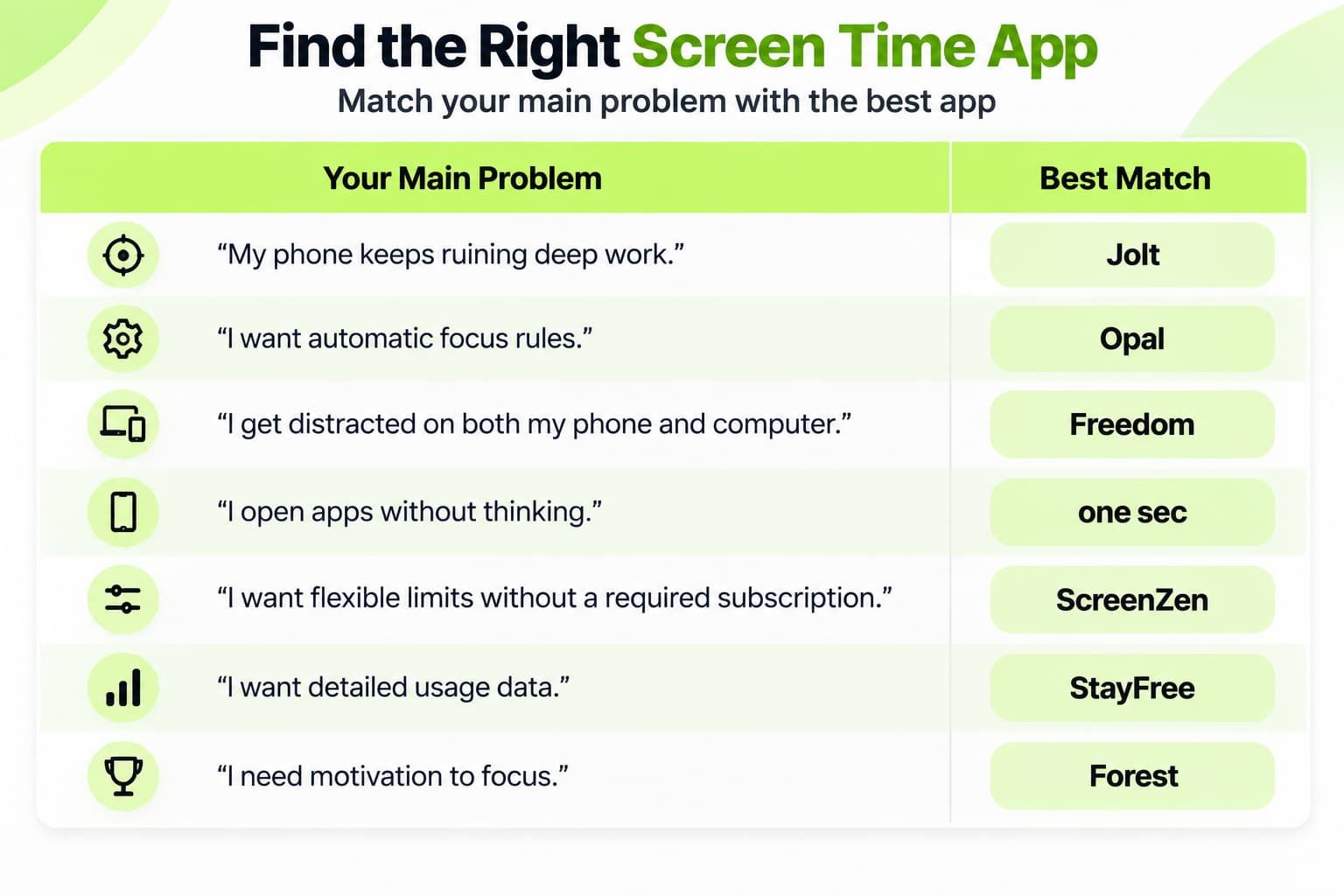
The right app depends on your actual problem.
Do not download every app.
Start by identifying what is actually happening.
Ask yourself:
- Do I lose time to social media?
- Do I keep checking my phone during work?
- Do I work across several devices?
- Do I ignore normal screen-time limits?
- Do I need stronger blocking?
- Do I scroll late at night?
- Do I need data or actual restrictions?
Once the problem is clear, choosing between the best screen time apps becomes much easier.
Why Professionals Need Screen-Time Management in 2026
Modern work already contains enough interruptions.
Microsoft's workplace data found that workers can receive a digital interruption about every two minutes during core working hours.
Your personal phone can add another layer.
Research published in
Duke and Montag (2017) Reports found a moderate relationship between smartphone-addiction scores and self-reported reductions in work productivity among 262 participants. Higher smartphone-addiction scores were also linked with more work hours reported as lost to phone use. The study shows an association rather than proving that smartphone use alone causes lower productivity.
Common Phone Distractions at Work
These include:
- Social media
- Short videos
- News
- Shopping
- Games
- Personal messages
- Constant email checking
- Notifications
- Repeated app switching
| Distraction | What Often Happens |
|---|
| Social media | Five-minute break becomes 30 minutes |
| Notifications | Deep work is interrupted |
| Messages | Attention moves away from the current task |
| Short videos | Easy to continue scrolling |
| News | Repeated checking throughout the day |
| Email | Inbox is checked without a clear reason |
The goal of phone addiction apps is not to make your smartphone useless.
The goal is to decide when your phone serves you and when it should stay out of the way.
How to Use Digital Detox Apps Without Hurting Your Work
Professionals cannot simply switch their phones off all day.
Clients may call.
Employees may need answers.
You may need authentication apps, banking, maps, calendars, or business communication.
That is why the best digital detox apps should be used carefully.
Try This Simple System
During Deep Work
Block:
- Social media
- Entertainment
- News
- Games
Keep:
- Work apps
- Calendar
- Phone
- Required messaging tools
During Normal Working Hours
Use daily limits rather than complete blocking.
After Work
Reduce access to work email and unnecessary social apps.
Before Bed
Create a stronger screen-free period.
| Part of Day | Suggested Approach |
|---|
| Morning | Delay social media |
| Deep work | Strong blocking |
| Meetings | Keep only essential apps |
| Normal work | Use reasonable limits |
| Evening | Reduce work notifications |
| Bedtime | Block your biggest scrolling apps |
This approach is more realistic than trying to stay completely offline.
Conclusion
Freedom is useful when distractions follow you from phone to computer. one sec works well when your problem is automatic checking. ScreenZen offers flexible controls, StayFree provides strong usage insights, Forest makes focus more enjoyable, and Opal can automate regular focus periods.
For professionals and entrepreneurs who want a more complete system, Jolt combines Sessions, Quick Focus, App Limits, Blocking Modes, Accountability Partner, GPS Blocking, Good Apps First, Sleep Mode, and detailed Insights. Instead of only showing how much time you lost, it gives you several ways to protect the hours you still have.
The purpose of screen time management apps is not to stop using technology.
It is to stop using it without thinking.
Frequently Asked Questions:
-
What are the best screen time apps for professionals in 2026?
Strong choices include Jolt, Opal, Freedom, one sec, ScreenZen, StayFree, and Forest. Each app solves a slightly different problem, from deep-work blocking to cross-device tracking and mindful app use.
-
Which screen time app is best for entrepreneurs?
Entrepreneurs should look for an app that can protect deep-work sessions, create app limits, reduce repeated app checking, and provide useful information about distraction patterns.
-
Can screen time apps improve productivity?
They can help reduce digital interruptions and create clearer boundaries around distracting apps. However, the app still needs to be combined with realistic work routines and clear priorities.
-
What are the best apps to reduce screen time?
The best apps to reduce screen time usually provide a mix of usage limits, app blocking, schedules, friction before opening apps, and usage tracking. The right mix depends on why you use your phone too much.
-
Are digital detox apps only for social media?
No. Digital detox apps can also help control games, news, entertainment, websites, shopping apps, and other digital distractions.
-
Do phone addiction apps completely lock the phone?
Not always. Most phone addiction apps let you select which apps should be limited or blocked while keeping essential tools such as calls, maps, calendars, and business apps available.
-
What should I look for in screen time management apps?
Look for:
» App and website blocking
» Daily time limits
» Focus schedules
» Stronger blocking options
» Usage reports
» Cross-device support if required
» Easy ways to keep essential work apps available
» Controls that are difficult enough to match your distraction habits
 Download Now
 Take charge of your time


 Twinkle