Screen Time Management for People Who Work from Home
7 - Minute read
Managing screen time when you work from home is different from a normal digital-wellness problem: your work and your distractions live on the same devices, often the same apps, all day, with no commute or office to draw a line between them. The best-practice fix isn't less screen time overall; it's structured screen time, where focus hours, breaks, and after-hours boundaries are set up to hold automatically instead of depending on you remembering to enforce them yourself.
Why remote work makes screen time harder to manage?
In an office, plenty of natural breaks happen without effort: commuting, walking to a meeting, grabbing coffee with a colleague. At home, all of that disappears, & the boundary between “working” and “off the clock” collapses into the same laptop and phone. The result, for most remote workers, is one of two failure modes: distracting apps bleeding into work hours, or work never actually ending because there's no physical cue that the day is over.
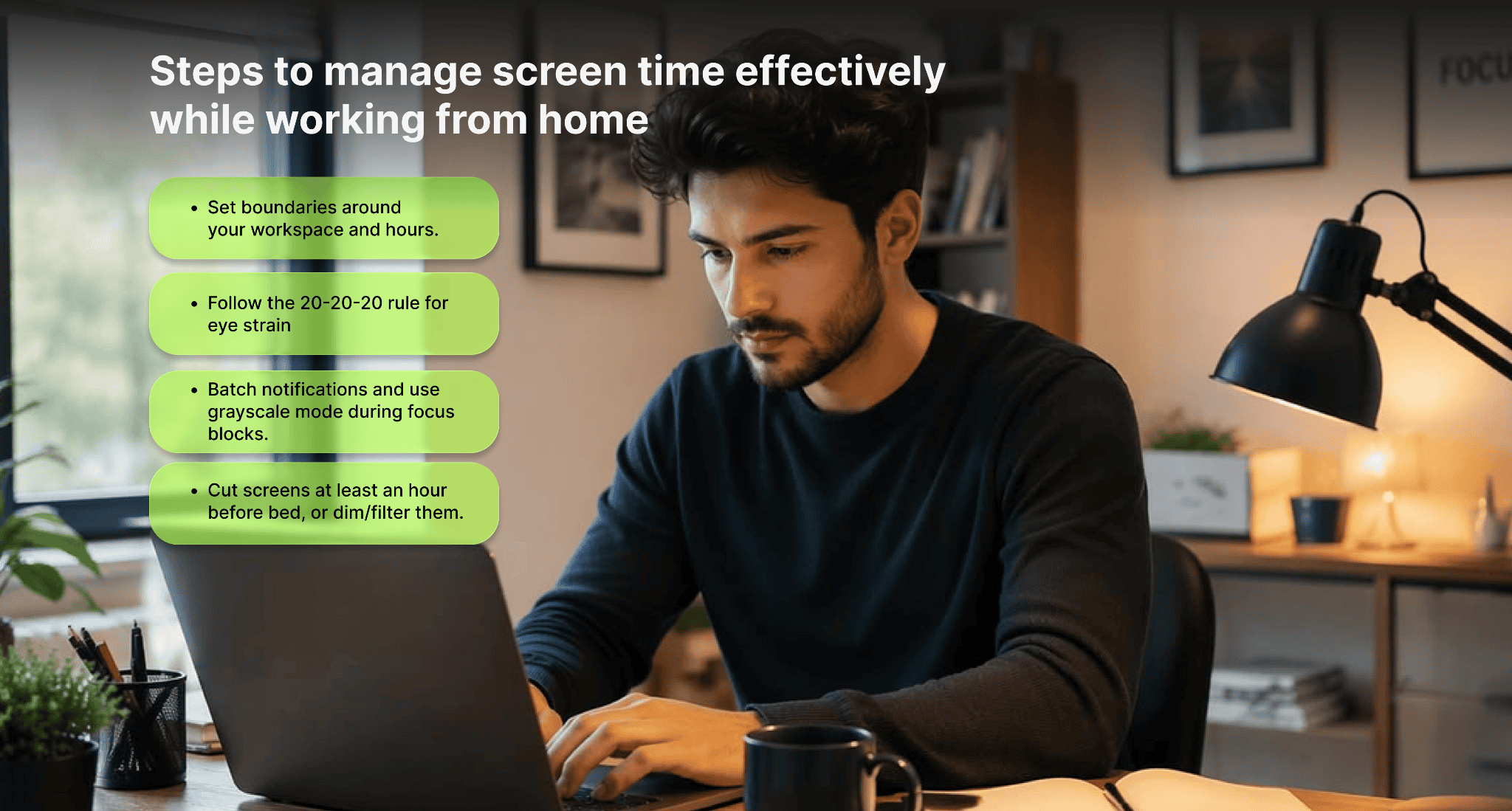
Steps to manage screen time effectively while working from home
Here's a practical, WFH-focused approach:
- Set boundaries around your workspace and hours. Keep work confined to a specific spot and shut down at a fixed time; this prevents the "always on" creep that happens when your office is also your living room.
- Follow the 20-20-20 rule for eye strain — every 20 minutes, look at something 20 feet away for 20 seconds. Research on this habit is mixed, but a 2026 study of over 500 heavy screen users found that after four weeks of consistent use, 59% reported real relief from tired, burning eyes and headaches, so it's worth building into your routine even if it's not a guaranteed fix.
- Batch notifications and use grayscale mode during focus blocks. Color and pings are designed to pull your attention back to the screen; muting them reduces the urge to glance every few minutes, which cuts total screen time more than any single break technique.
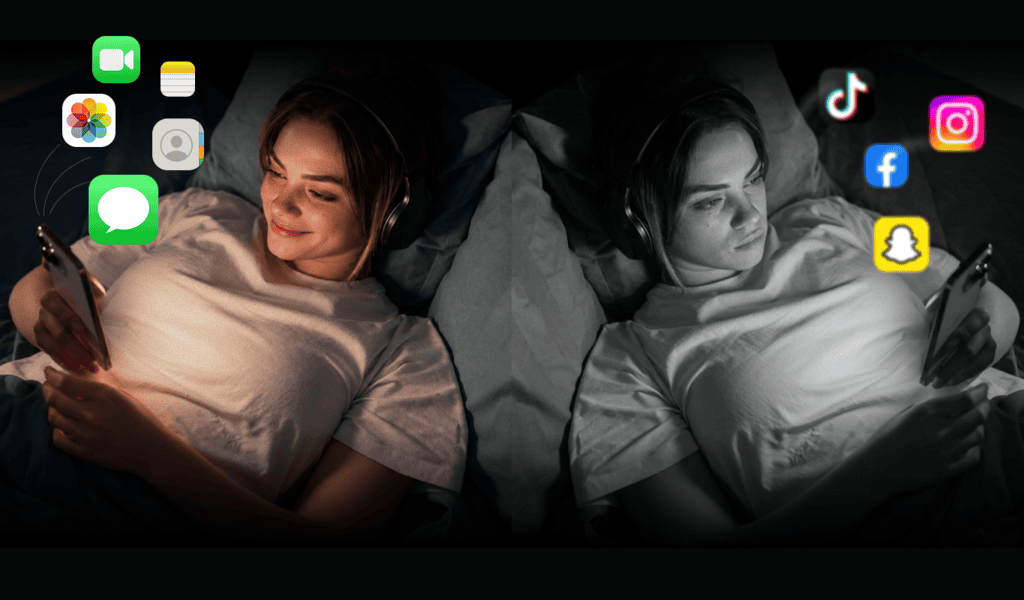
- Cut screens at least an hour before bed, or dim/filter them. This one has firmer backing: a University of Haifa sleep study found that blue light from screens measurably suppressed melatonin production and hurt sleep quality, while red-toned light didn't have the same effect. Since poor sleep makes you more screen-dependent the next day (doom-scrolling when tired is real), this step also indirectly reduces daytime screen time.
Setting boundaries between work and personal life
Setting clear boundaries between work and personal life isn't just a nice-to-have; it's backed by solid research on
psychological detachment from work, which shows employees who mentally disconnect during off-hours report better recovery and fewer symptoms of psychological strain. A large longitudinal study found this benefit holds even after periods of major disruption to normal routines, like extended remote-work stretches, when the line between "on" and "off" tends to blur.
Practically, this means: closing your laptop at a set time, avoiding email on your phone after hours, and physically leaving your workspace when the day ends. Even small rituals, like changing clothes or taking a short walk, signal to your brain that work is over. The payoff isn't just feeling better in the evening; detachment is also linked to lower exhaustion and stronger performance the next day, since a well-rested mind returns to work sharper than one that never fully clocked out.
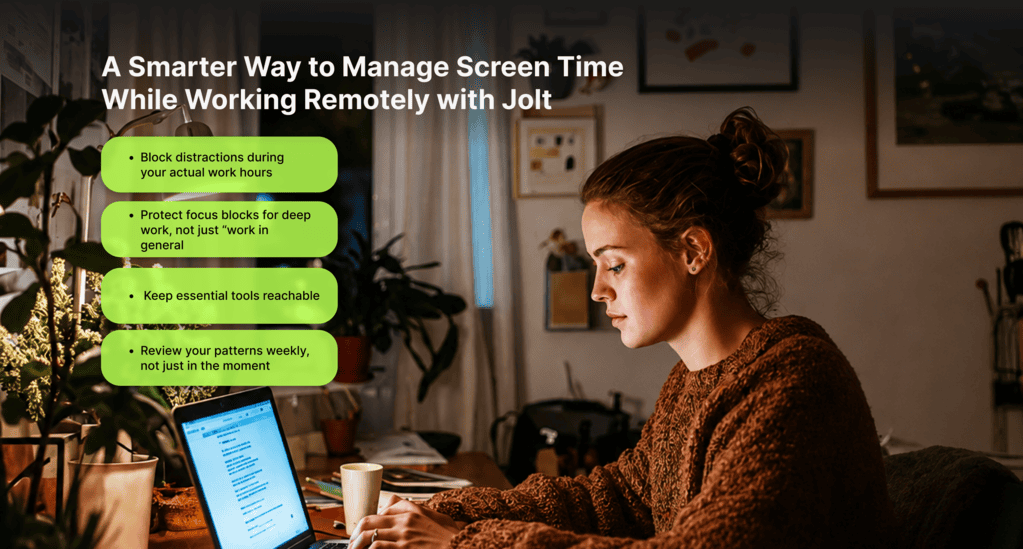
A Smarter Way to Manage Screen Time While Working Remotely with Jolt
1. Block distractions during your actual work hours
Sessions. If your work hours are fairly predictable, set up a Session for them, choose which apps or categories to block (individual apps or a whole category like social media or Games), the days of the week, and the time window. The apps block automatically when the session starts and unblock when it ends, so you're not relying on remembering to turn anything on each morning. You can also add an optional waiting period before a session can be turned off, which helps on the days your discipline is thinner than usual.
2. Protect focus blocks for deep work, not just “work in general”
Focus Session. Not all work hours need the same level of protection. For the specific stretches where you need real concentration, a report, a proposal, deep problem-solving, use Focus Session instead of (or alongside) your standing Session. It starts instantly whenever you decide you need it, runs for however long you set, and can optionally hide app icons completely so distracting apps aren't even visible on your home screen while it's active. Optional looping focus music is also available if that helps you settle in.
3. Keep essential tools reachable
Always Allowed Apps. Whatever combination of Sessions,
GPS Blocking, or Focus Sessions you use, add your genuinely necessary apps to Always Allowed Apps: Phone, Messages, Maps, banking apps, or anything you might urgently need. These bypass every blocking rule in Jolt. Keep the list short; the more you add, the less effective your blocking becomes overall.
4. Review your patterns weekly, not just in the moment
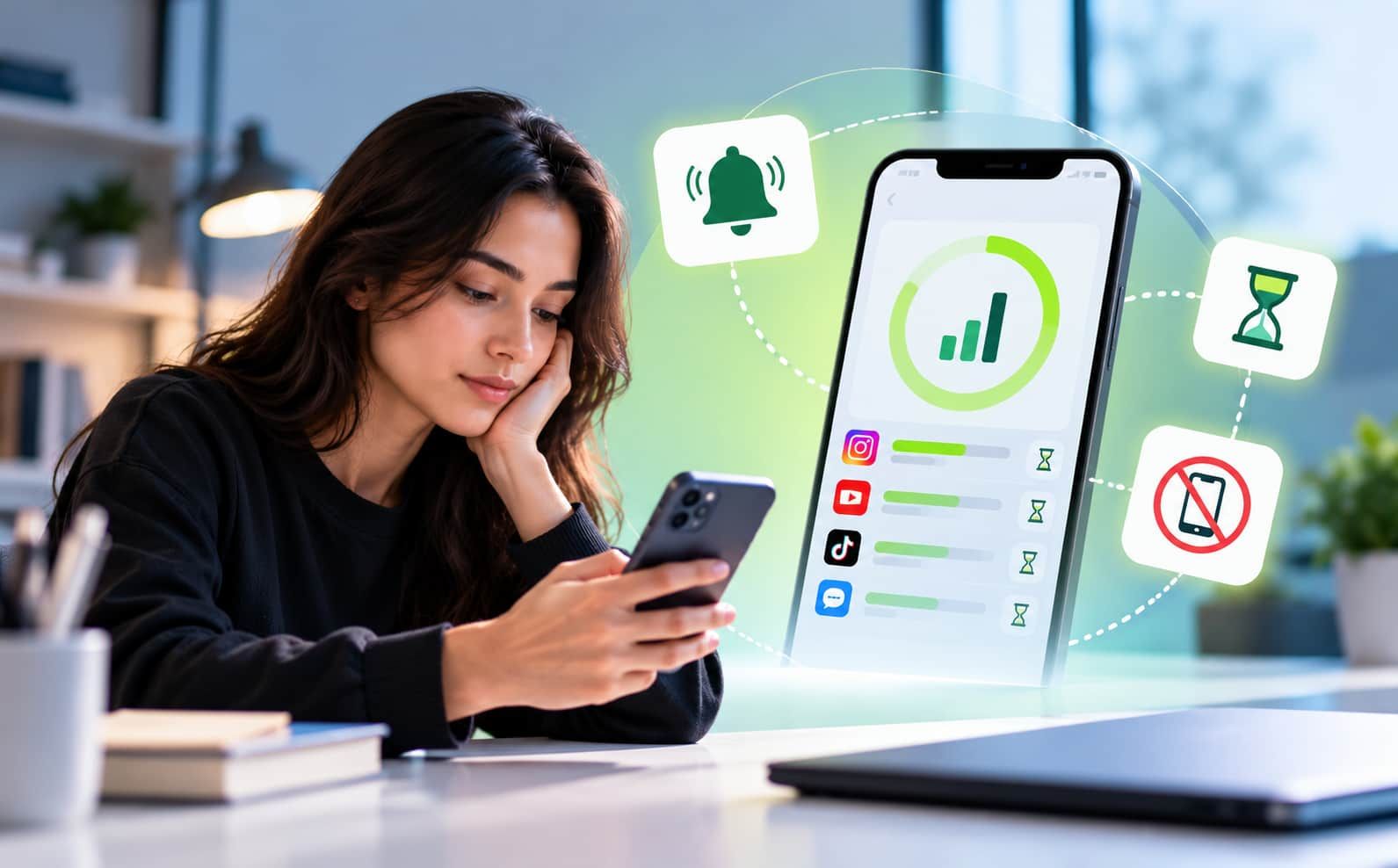
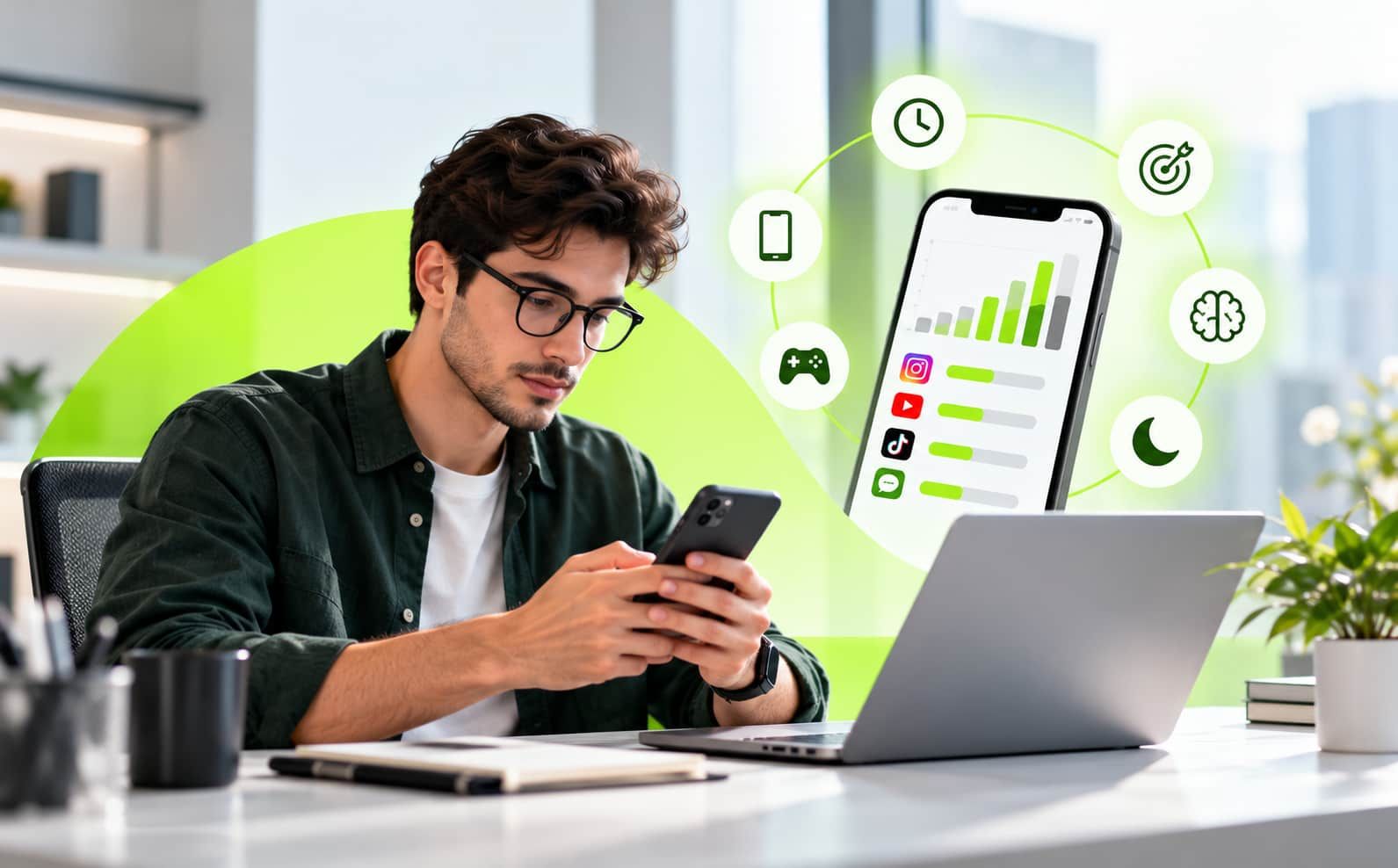
Daily & Weekly Reports / Screen Time Insights. Two tools help you see whether your setup is actually working. Daily & Weekly Reports give you a quick, story-style recap of total screen time, pickups, most distracted hour, and top apps by time and opens, useful for a fast daily gut-check. For a deeper look, Screen Time Insights is a full dashboard where you can pick any date or view daily, weekly, or monthly tabs, see usage broken down by app, pickup counts, and an hourly usage graph. Browsing recent data is available to everyone; looking back months or years is a premium feature.
Reviewing this weekly is what turns “I think I'm doing better” into an actual answer.
FAQ
How can I control screen time while working from home?
The most effective way is to structure your screen time instead of simply reducing it. Use app blockers during work hours, schedule focused work sessions, allow only essential apps, and review your usage weekly to stay accountable.
Why is screen time harder to manage for remote workers?
Remote work removes natural boundaries like commuting and office routines. Since work and distractions exist on the same devices, it becomes easier for distractions to interrupt work and harder to switch off after work hours.
What are the best tools to reduce distractions during work hours?
Tools like app blockers, focus sessions, and screen time trackers help limit access to distracting apps, create dedicated focus periods, and provide insights into your usage patterns so you can improve over time.
How often should I review my screen time habits?
Reviewing your screen time weekly is ideal. It helps you identify patterns, track progress, and adjust your settings or habits based on what is actually working, rather than relying on assumptions.
What's the single most useful feature for remote workers specifically?
Sessions, for most people, enforce your actual work-hour boundaries automatically without requiring you to remember to turn anything on. GPS Blocking is worth adding if you have a dedicated workspace, since it ties enforcement to a physical location rather than just the clock.
Conclusion
Managing screen time while working from home is less about reducing device use and more about creating intentional boundaries.
Structured work hours, regular breaks, fewer distractions, and healthier bedtime habits, the kind
Jolt's Sleep Score is built to support, can prevent work and entertainment from blending together. With consistent digital boundaries, remote workers can protect their focus, well-being, and personal time

 Download Now
 Take charge of your time


 Twinkle