10 Best Apps for Student Productivity in 2026
Being a productive student in 2026 is not only about studying for more hours. It is about using your time and attention properly.
Students now have lectures, assignments, group projects, online classes, exams, emails, research papers, and dozens of digital tools to manage. At the same time, the same phone that helps you study can also pull you into
social media, videos, games, and endless notifications.
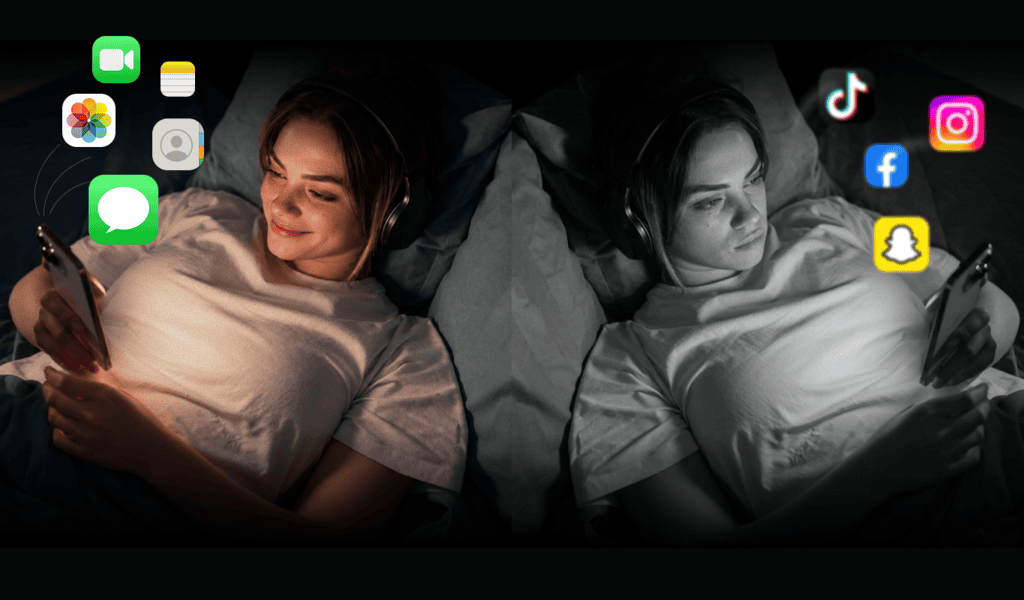
Digital distraction is already affecting learning.
OECD data from PISA 2022 found that students who reported being distracted by digital devices in mathematics lessons performed worse on average than students who were not distracted. The
OECD also found that digital distraction from classmates was linked with lower mathematics performance.
The right apps can help.
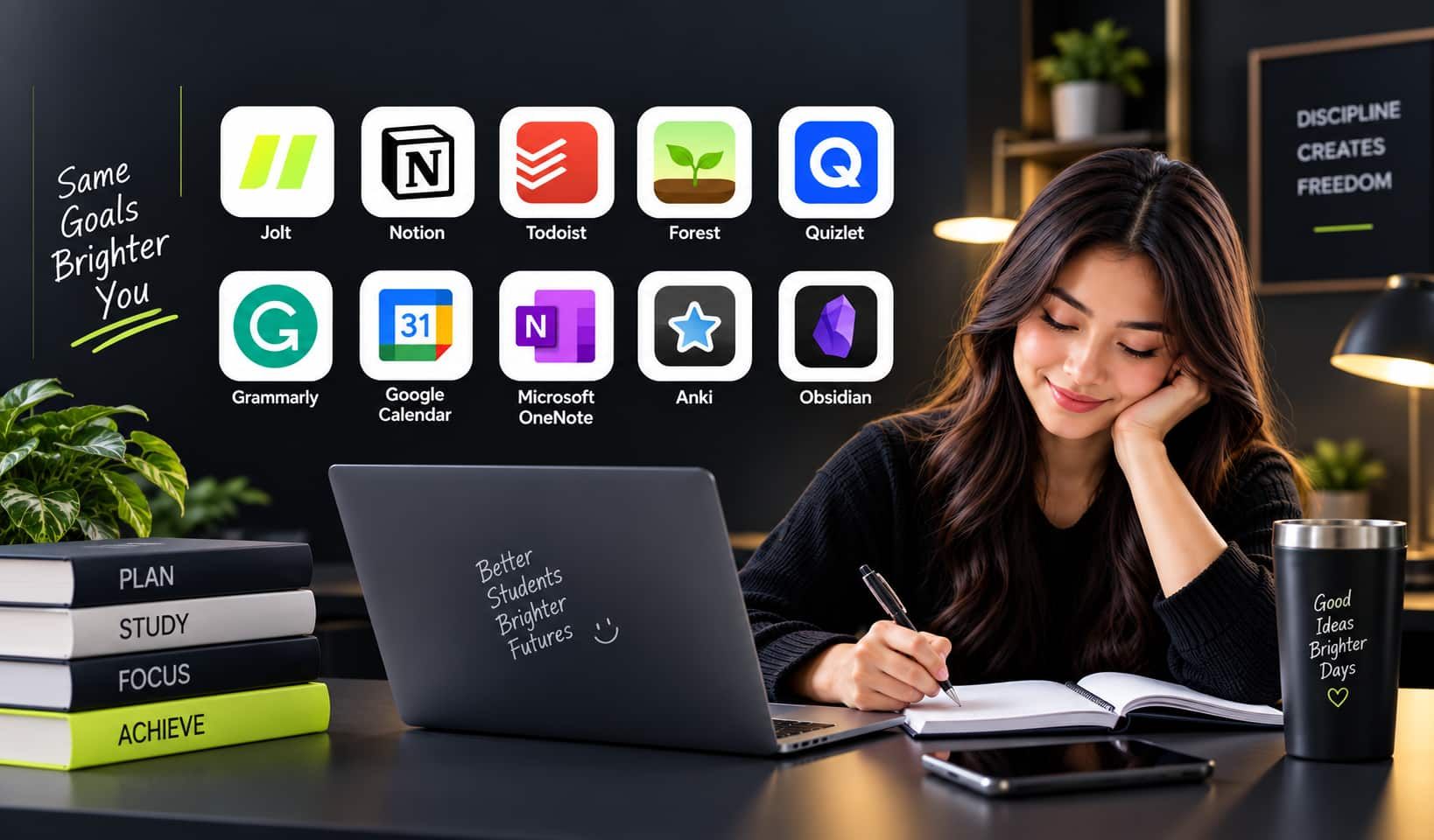
The best apps for student productivity in 2026 are:
- Jolt for reducing phone distraction
- Notion for organizing student life
- Todoist for assignments and tasks
- Forest for focus sessions
- Quizlet for revision
- Grammarly for writing
- Google Calendar for time planning
- Microsoft OneNote for class notes
- Anki for long-term memory
- Obsidian for connected research notes
Best Productivity Apps for Students at a Glance
| App | Best For | Main Student Problem It Solves |
|---|
| Jolt | Phone distraction | Constant scrolling and app checking |
| Notion | Organization | Notes, projects, and plans are scattered |
| Todoist | Task management | Forgetting assignments and deadlines |
| Forest | Focus | Difficulty staying focused for a set period |
| Quizlet | Revision | Remembering course material |
| Grammarly | Writing | Improving essays and assignments |
| Google Calendar |
Let us look at each of these student productivity apps in more detail.
10 Best Apps for Student Productivity in 2026 to Study Smarter and Stay Focused
1. Jolt
You may already have a study timetable.
You may already know what chapter you need to finish.
You may even have your books open in front of you.
But then your phone lights up.
You check one notification. Then you open Instagram. A few minutes later, you are watching reels, checking messages, or jumping between apps.
That is the problem
Jolt app is designed to tackle.
Instead of being another homework planner, it focuses on protecting your attention from distracting phone apps.
Research from the
University of Texas at Austin involving nearly 800 smartphone users found that people performed better on cognitive tasks when their smartphones were in another room rather than sitting nearby. The researchers concluded that simply having a smartphone nearby may reduce available cognitive capacity, even when a person is not actively using it.
For students, that makes phone distraction an important productivity problem to solve.
How Jolt Helps Students Stay Focused
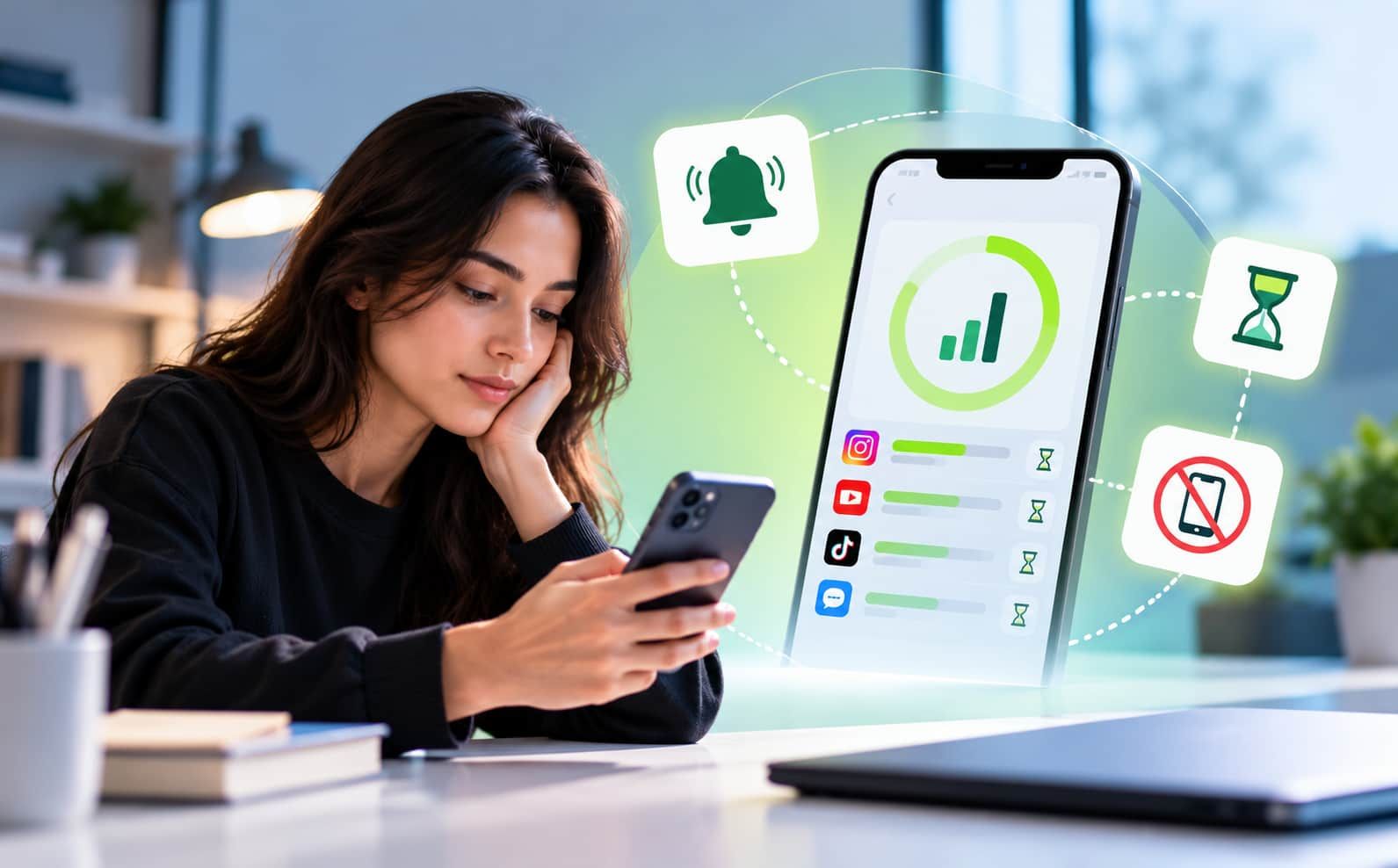
The app combines several types of phone control instead of giving students only a basic timer.
Students can use it to:
- Block distracting apps during study hours
- Start instant focus periods
- Limit daily social media time
- Limit how many times an app can be opened
- Make blocks harder to bypass
- Automatically block apps at certain locations
- Build productive habits before unlocking entertainment
- Reduce bedtime scrolling
- Track distraction patterns
- Build focus streaks
Here is how the main features work.
| Jolt Feature | What It Does for Students | Example |
|---|
| Sessions | Blocks selected apps during a planned study period | Block Instagram from 7 PM to 9 PM |
| Quick Focus | Starts blocking immediately | Start a 60-minute revision block now |
| Duration Limit | Limits daily time on an app | Instagram limited to 30 minutes |
| Open Limit | Limits how many times an app can be opened | TikTok limited to 5 opens |
| Blocking Modes | Controls how difficult a block is to bypass | Use Hard Mode before an exam |
| Good Apps First | Makes useful app use come before distracting apps | Study app before entertainment |
Sessions Make Study Time Actually Feel Like Study Time
Suppose your plan is:
7:00 PM to 9:00 PM: Study biology
Normally, you might study for 15 minutes, check your phone, return to biology, check your phone again, and repeat the cycle.
With Sessions, you can choose the apps that should be blocked during those two hours. Jolt says Sessions let users schedule focused blocks in advance and choose which apps should be unavailable during that time.
A student could create:
If you study at the same time regularly, planned Sessions can turn focus into part of your routine.
Quick Focus is useful when you did not plan ahead. It starts a block immediately using your chosen defaults.
App Limits Control the Rest of Your Day
Maybe you do not want Instagram completely blocked.
Fair enough.
You may simply want to stop spending two hours on it.
Jolt provides two different kinds of App Limits.
- Duration Limit: Sets how many minutes you can use an app each day.
- Open Limit: Sets how many times you can open an app each day.
For example:
| App | Rule |
|---|
| Instagram | 30 minutes daily |
| TikTok | 5 opens daily |
| YouTube | 45 minutes daily |
| Reddit | 15 minutes daily |
A student who opens Instagram 40 times during revision can lose focus even if every visit lasts only a minute or two.
Choose How Difficult It Is to Break Your Own Rule
Many screen-time tools fail for one simple reason.
Then the same student removes the limit.
Jolt offers Easy, Medium, and Hard Blocking Modes so users can decide how strongly a restriction should be enforced.
- Easy Mode: Creates a pause before entering a distracting app.
- Medium Mode: Adds a challenge before access.
- Hard Mode: Makes the restriction much harder to change or bypass while it is active.
For example, you might use Easy Mode during a normal afternoon but choose Hard Mode while preparing for tomorrow's final exam.
Good Apps First Changes the Reward
Instead of only saying, "Do not use social media,"
Good Apps First can make productive phone use happen before distracting phone use.
For a student, the idea could look like:
- Use a reading app first
- Complete productive phone activity
- Then unlock selected entertainment
This can suit students who respond better to rewards than complete restriction.
GPS Blocking Can Turn the Library Into an Automatic Focus Zone
Another useful feature is GPS Blocking.
Instead of remembering to switch your phone into focus mode every time you arrive somewhere, the restriction can be connected to a location.
For example:
- Library → Block social media
- Campus → Limit entertainment
- Study room → Start stronger restrictions
The student does not need to make the decision every day.
Accountability Helps When You Keep Breaking Your Own Limits
Sometimes the problem is not creating a rule.
It is sticking to it.
With Accountability Partner, a real person can become part of the override process. Jolt describes this as allowing a partner such as a friend, spouse, or colleague to be involved when the user wants to override a block.
For students, this could be:
- A roommate
- A close friend
- A sibling
- A study partner
Knowing that someone else is involved creates another barrier between the urge and the distraction.
Sleep Mode Helps With Late-Night Scrolling
Student productivity also depends on what happens after studying.
If you spend another two hours scrolling in bed, the next morning may be harder.
Sleep Mode lets users create a sleep schedule, choose apps to block, receive a wind-down reminder, and review information about nighttime phone behavior.
The Sleep Report can show:
- Last phone pickup before bed
- First phone pickup after waking
- Overnight phone disturbances
That makes the problem easier to see instead of simply thinking, "I probably use my phone too much at night."
Insights Show Where Your Focus Is Going
The app also includes:
These can help students see when distraction normally happens rather than guessing.
Maybe you discover:
Your social media use rises every day between 4 PM and 6 PM.
You can then create stronger restrictions during those hours.
Why It’s One Of The Best App For Students
They organize tasks, notes, deadlines, or revision.
This one tackles something that can stop all of those systems from working in the first place: your phone taking your attention away from the work.
It is especially useful if you:
- Check social media while studying
- Keep watching short videos
- Ignore normal screen-time reminders
- Open apps without thinking
- Struggle with late-night scrolling
- Need stronger focus during exams
- Want to understand your distraction habits
Best for: Students whose biggest productivity problem is phone distraction.
2. Notion
Notion is one of the best apps for student productivity when your academic life feels scattered.
You can use the same workspace for notes, assignments, projects, calendars, reading lists, and personal plans.
Notion specifically promotes student planners, schoolwork organization, club management, habit tracking, and project planning for students. Eligible college and university students can also access its Education Plus Plan under certain conditions.
What Students Can Use Notion For
You can create:
- A semester dashboard
- Subject pages
- Assignment trackers
- Reading lists
- Exam planners
- Lecture notes
- Research databases
- Project boards
- Habit trackers
- Internship or job application trackers
| Feature | Student Use |
|---|
| Pages | Create notes for each subject |
| Databases | Track assignments and deadlines |
| Templates | Build planners quickly |
| Calendar | View academic dates |
| Boards | Track project stages |
| Checklists | Manage daily study tasks |
A simple workspace could contain:
Semester Dashboard
- Mathematics
- Psychology
- Economics
- Assignment Tracker
- Exam Calendar
- Reading List
This is much better than keeping some notes in your phone, other notes in Google Docs, and deadlines somewhere else.
Best for: Students who want an all-in-one academic workspace.
3. Todoist
Some students do not need a huge productivity system.
They simply need to know:
What do I need to do next?
Todoist is built around tasks and projects. Its current tools allow users to add dates, deadlines, priorities, labels, comments, subtasks, attachments, descriptions, and reminders.
Useful Todoist Features for Students
Students can:
- Add homework as tasks
- Create separate projects for subjects
- Add deadlines
- Break assignments into subtasks
- Set priorities
- Plan recurring tasks
- View tasks in lists or boards
- Connect tasks with calendars
| Feature | Student Example |
|---|
| Task | Finish history essay |
| Deadline | Friday |
| Priority | High |
| Subtasks | Research, outline, write, edit |
| Project | History 202 |
| Recurring task | Revise vocabulary every day |
Todoist also supports calendar integration, allowing users to see calendar events alongside tasks and sync time-blocked tasks with Google or
Outlook Calendar.
Do not add:
Finish research paper
Break it down into:
- Choose topic
- Find five sources
- Write introduction
- Complete first draft
- Add citations
- Proofread
- Submit paper
The project suddenly feels much easier.
Best for: Students who forget assignments or feel overwhelmed by long to-do lists.
4. Forest
Forest turns focus into a small game.
You start a focus period and grow a virtual tree while you stay away from distracting phone activity.
Current versions include a focus timer, app blocking through allow lists on supported devices, scheduled focus windows, focus tracking, and other tools designed to reduce unnecessary phone use.
Why Students May Like Forest
It can make a normal study timer feel more rewarding.
Students can use it for:
- Pomodoro study sessions
- Exam revision
- Reading
- Essay writing
- Homework
- Screen-free breaks
| Feature | Student Benefit |
|---|
| Focus Timer | Gives study time a clear start and end |
| Virtual Trees | Creates visual motivation |
| Allowlist | Keeps needed apps while restricting others |
| Time Guard | Creates scheduled phone-free periods |
| Focus Tracking | Shows how much focused time you completed |
Example
Instead of saying:
"I need to study all evening."
Try:
"I will focus for 45 minutes and grow one tree."
That goal feels smaller and easier to begin.
The app's current App Store listing says it is used by tens of millions of people worldwide, showing how popular this gamified focus approach has become.
Best for: Students who enjoy timers, rewards, and visual motivation.
5. Quizlet
Reading the same notes repeatedly can feel productive without showing whether you actually remember anything.
Quizlet makes studying more active.
Its current tools include flashcards, adaptive practice, practice tests, study guides, AI-generated study materials, and PDF summarization.
What Students Can Do With Quizlet
Students can:
- Create flashcards
- Turn notes into flashcards
- Generate practice tests
- Upload notes or slides
- Create study guides
- Practise multiple-choice questions
- Identify weak areas
- Review material across devices
| Feature | Best Use |
|---|
| Flashcards | Definitions and facts |
| Learn | Personalized practice |
| Practice Tests | Exam preparation |
| Study Guides | Organizing large topics |
| PDF Summarizer | Breaking down long material |
| AI Flashcard Maker | Creating revision material faster |
Instead of reading:
The mitochondria is the powerhouse of the cell.
Cover the answer and ask:
What does the mitochondria do?
That small change makes your brain retrieve the information.
Quizlet's Learn feature uses different question formats and adapts practice based on areas the student finds difficult.
Best for: Students preparing for tests, quizzes, and memory-heavy subjects.
6. Grammarly
Writing takes up a large part of student life.
You may need to write:
- Essays
- Research papers
- Reports
- Applications
- Presentations
- Emails
- Thesis chapters
Grammarly now offers much more than basic spelling correction. Its student tools include proofreading, writing suggestions, citation support, plagiarism checks, AI detection, paraphrasing, and writing-focused AI tools.
Useful Features for Students
| Feature | How It Helps |
|---|
| Proofreader | Finds grammar and clarity problems |
| Citation Finder | Helps locate and format sources |
| Plagiarism Checker | Flags possible matching content |
| AI Detector | Reviews possible AI-generated text |
| Paraphraser | Helps rewrite sentences |
| Writing Feedback | Helps improve structure and clarity |
Students can use it to:
- Catch spelling mistakes
- Improve sentence clarity
- Check grammar
- Review citations
- Improve awkward wording
- Proofread final drafts
The best use is:
You think → You write → The tool helps you improve it.
That is better than asking a writing tool to do your entire assignment for you.
You should also follow your university's academic integrity rules when using AI features.
Best for: Students who regularly write essays, papers, reports, and academic emails.
7. Google Calendar
A to-do list answers:
What do I need to do?
A calendar answers:
When am I going to do it?
That second question is important.
Google Calendar now lets users create and manage tasks with start dates, planned time, deadlines, descriptions, notifications, and recurring schedules.
What Students Can Schedule
You can add:
- Classes
- Exams
- Assignment deadlines
- Study blocks
- Revision sessions
- Group meetings
- Office hours
- Project work
- Personal commitments
| Calendar Entry | Example |
|---|
| Class | Economics, 10 AM |
| Study Block | Statistics revision, 6 PM |
| Deadline | Marketing project, Friday |
| Recurring Task | Vocabulary review every evening |
| Exam | Psychology final, May 12 |
Make it specific:
Wednesday, 7 PM to 8:30 PM
Chemistry: Chapters 7 and 8
Now the task has a real place in your week.
This is why Google Calendar remains one of the simplest productivity apps for college students.
Best for: Students who know what they need to do but struggle to find time to do it.
8. Microsoft OneNote
OneNote works much like a digital binder.
Microsoft organizes content using:
Notebook → Section → Page → Subpage
Students can create different notebooks or sections for subjects and keep large amounts of class material organized.
What Students Can Store in OneNote
You can use it for:
- Lecture notes
- Subject notes
- Diagrams
- Class summaries
- Images
- Research
- Handwritten notes
- Revision pages
| OneNote Level | Example |
|---|
| Notebook | University Semester |
| Section | Psychology |
| Page | Memory |
| Subpage | Working Memory |
| Linked Page | Exam Revision Notes |
OneNote also allows links between notebooks, sections, pages, and even specific paragraphs, which can be useful when different topics connect.
Example:
Notebook: Semester 1
Sections:
- Psychology
- Statistics
- Marketing
- Economics
Inside Psychology:
- Week 1
- Week 2
- Memory
- Learning
- Exam Revision
Everything remains much easier to find.
Best for: Students who take lots of lecture notes, especially across many subjects.
9. Anki
Anki is built around flashcards, but its main value comes from deciding when you should review information again.
After answering a card, you rate how well you remembered it.
Anki then schedules another review. Its official website explains that the software is designed to help users spend more time on difficult material and less time on information they already know.
Why Students Use Anki
It is especially useful for subjects with lots of facts.
Examples include:
- Medicine
- Biology
- Languages
- Law
- History
- Anatomy
- Professional exams
| Feature | Student Benefit |
|---|
| Flashcard Decks | Organize cards by subject |
| Scheduled Reviews | Review information at useful intervals |
| Recall Rating | Adjust future review timing |
| Images | Useful for anatomy and diagrams |
| Audio | Helpful for language learning |
| Sync | Continue studying across devices |
Example
- Front: What is the capital of Australia?
- Back: Canberra
If you remembered it easily, Anki can wait longer before showing it again.
If you forgot it, you will see it sooner.
That means you spend your study time where it is needed most.
Best for: Students who need strong long-term memory rather than last-minute revision.
10. Obsidian
Some students do not just need notes.
They need to understand how different ideas connect.
Obsidian is useful for building a personal knowledge system where one note can link directly to another.
Its Backlinks feature shows which other notes refer to the note you are currently viewing.
Obsidian also stores notes as local Markdown files, giving users direct control over their files and allowing offline access.
What Students Can Do With Obsidian
Students can:
- Create subject notes
- Link related concepts
- Build research notes
- Create knowledge maps
- Store sources
- Create project databases
- Find relationships between topics
| Feature | Student Use |
|---|
| Internal Links | Connect related ideas |
| Backlinks | Find notes referring to a topic |
| Graph View | Visualize connections |
| Markdown Files | Keep notes in a portable format |
| Bases | Create database-style note views |
| Local Storage | Keep access to notes offline |
Example
- Imagine you create these notes: Habit Formation
- Then link it to: Dopamine
- which links to: Social Media
- which links to: Attention
- which connects with: Student Productivity
Instead of having five separate documents, you build a network of ideas.
This can be especially useful for:
- University research
- Thesis work
- Literature reviews
- Complex subjects
- Long-term learning
Best for: Students who research deeply and like connecting ideas across topics.
Which Productivity App Should a Student Choose?
Do not choose based on which app looks coolest.
Choose based on your biggest problem.
Use this table:
| Your Main Problem | Best App to Try |
|---|
| "My phone keeps distracting me." | Jolt |
| "Everything is disorganized." | Notion |
| "I forget assignments." | Todoist |
| "I cannot stay focused." | Forest |
| "I need to prepare for an exam." | Quizlet |
| "My writing needs improvement." | Grammarly |
| "I waste time because I never plan my day." | Google Calendar |
| "My lecture notes are a mess." | OneNote |
| "I forget what I studied." | Anki |
| "I want to connect research and ideas." | Obsidian |
Before downloading anything, ask yourself:
- What wastes most of my study time?
- Do I struggle with focus or organization?
- Do I forget deadlines?
- Do I need better notes?
- Do I need to remember information?
- Is my phone the real problem?
- Do I already have an app that can solve this?
The best apps for students solve a specific problem. They should not create another complicated system that you have to maintain.
What Is the Best Productivity App Setup for College Students?
You probably do not need all ten.
A simple setup is often better.
For most students, four categories are enough:
| Need | App Type |
|---|
| Focus | Phone blocker or focus timer |
| Planning | Calendar or task manager |
| Notes | Note-taking app |
| Revision | Flashcards or practice tests |
For example:
- Use one tool to protect focus.
- Use Google Calendar or Todoist for deadlines.
- Use Notion, OneNote, or Obsidian for notes.
- Use Quizlet or Anki for revision.
That gives you a complete system without filling your phone with productivity tools.
How to Use Student Productivity Apps Without Wasting More Time
There is a funny problem with productivity apps.
Sometimes people spend so much time organizing productivity that they forget to be productive.
Avoid that.
Follow These Simple Rules
- Choose apps based on real problems.
- Do not download five apps that do the same job.
- Keep your setup simple.
- Schedule real study periods.
- Turn off unnecessary notifications.
- Use active revision instead of only rereading.
- Review your progress once a week.
- Remove any productivity tool you never actually use.
| Bad Habit | Better Approach |
|---|
| Building a perfect dashboard for hours | Start studying with a basic setup |
| Installing every productivity app | Pick one app per problem |
| Writing huge to-do lists | Choose three important tasks |
| Studying with social media open | Protect focused study time |
| Rereading notes again and again | Test yourself |
| Planning without scheduling | Put study blocks on a calendar |
Remember that productivity is not about having more tools.
It is about getting meaningful work done with less wasted time.
Conclusion
There is no single perfect answer when choosing the best apps for student productivity.
Notion is excellent for organization. Todoist makes assignments easier to manage. Forest gives focus a more playful feel. Quizlet and Anki can support revision. Grammarly helps with writing. Google Calendar gives your study plans a real time and place. OneNote keeps class material organized, while Obsidian works well for deeper knowledge building.
But if your plans keep failing because your phone steals your attention before you can finish your work, Jolt takes a different approach. Sessions, Quick Focus, App Limits, Blocking Modes, Good Apps First, GPS Blocking, Accountability Partner, Sleep Mode, Focus Score, Streaks, and Behavior Patterns are designed to reduce the phone distractions that often sit between a student and the work they already know they need to do.
The best productivity system is not the one with the most apps.
It is the one that helps you start, focus, finish, and remember.
Frequently Asked Questions
-
What are the best apps for student productivity in 2026?
The best apps for student productivity include tools for focus, planning, notes, revision, and writing. Popular choices include Jolt, Notion, Todoist, Forest, Quizlet, Grammarly, Google Calendar, OneNote, Anki, and Obsidian.
-
What are the best productivity apps for students who get distracted?
Students who struggle with distraction should look for apps that block distracting apps, schedule focus periods, limit screen time, and create stronger barriers against social media rather than relying only on ordinary to-do lists.
-
What are the best apps for college students?
Useful productivity apps for college students include a focus tool, Google Calendar or Todoist for planning, Notion or OneNote for notes, and Quizlet or Anki for revision.
-
Which study productivity apps are best for exams?
Quizlet is useful for flashcards, practice tests, and study guides. Anki is strong for repeated long-term review. Focus tools can also help students protect dedicated exam preparation time.
-
How many student productivity apps should I use?
Most students do not need ten apps. Three or four carefully chosen tools are usually enough. Choose one for focus, one for planning, one for notes, and one for revision if needed.
-
Are productivity apps really useful for students?
Yes, when the app solves a clear problem. A calendar can help with scheduling, flashcards can support revision, task managers can organize assignments, and focus tools can reduce distraction. The app itself cannot replace consistent study habits.
-
What should I look for in the best apps for students?
Look for:
⇒ Simple setup
⇒ A clear purpose
⇒ Easy daily use
⇒ Useful reminders
⇒ Cross-device access if needed
⇒ Good privacy controls
⇒ Features that solve your actual study problem
⇒ A free version or student pricing when available

 Download Now
 Take charge of your time


 Twinkle